What Is Gemini AI Photo Editing and Why Is Everyone Using It for Boy Photos?
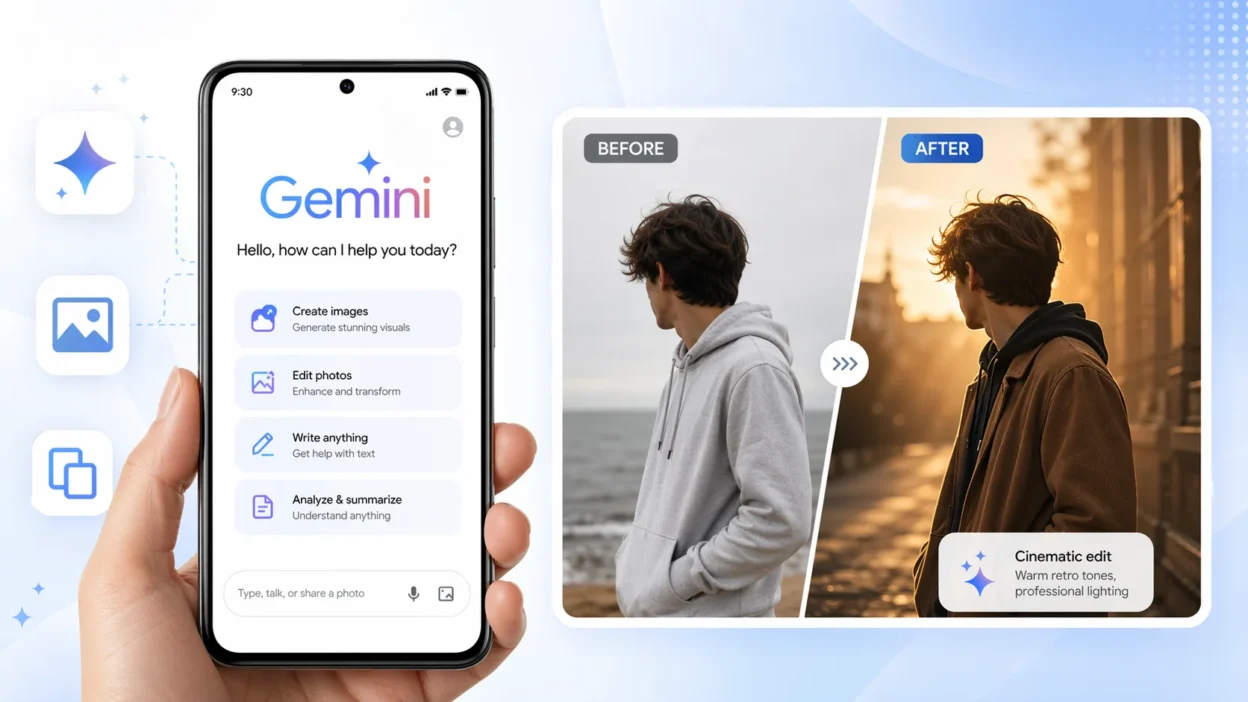
Google Gemini is an AI assistant built by Google that can generate and transform images based on text descriptions you type. You do not need a camera, editing software, or any design skills. You just describe what you want, and Gemini creates it.
The reason so many people are using Google Gemini for boy photos specifically comes down to one thing: it is free, it is fast, and it works directly from your phone. Like other free AI tool that have transformed creative workflows, Gemini removes the traditional barriers of cost and complexity.
You open the app, upload a photo, type a description of the look you want, and Gemini generates a transformed portrait in seconds. That is genuinely it.
As one Reddit user with 41 upvotes summed it up perfectly: “Just open the Gemini app or go to the Gemini website, paste the prompt, and add the pictures. That’s it.” That comment stuck with me because it is exactly right. People overthink this tool when the reality is surprisingly simple.
Gemini AI image generation works by reading your text description and using it to understand the visual output you want. It analyzes your uploaded photo, keeps the core identity, and rebuilds the image around the style, outfit, lighting, and mood you described. The result is an AI generated portrait that looks nothing like a filter and everything like a professional photoshoot.
The version that works best for boy portrait editing is Gemini 2.5 Flash. Creators with hundreds of thousands of views on YouTube are specifically using this version to generate ultra-realistic 8K portrait results on their phones. If you are wondering which version to use, that is your answer.
Text-to-Image vs Image-to-Image: Which One Are You Doing?
This is the single most important thing to understand before you start using any ai image prompt for boy photos.
Text-to-image means you describe a person from scratch and Gemini creates someone entirely from your description. No photo upload needed. The result is a fictional character based on your words.
Image-to-image means you upload your own photo and Gemini transforms it. Your face stays as the identity anchor. The outfit, setting, lighting, and mood all change based on what you typed. The person in the final image is still you.
Almost every trending boy photo prompt you see on Instagram and YouTube is using the image-to-image method. Creators upload their photo, paste a prompt, and Gemini rebuilds the portrait in a completely new visual style while keeping their actual face.
The workflow one creator with 423K views demonstrated shows this clearly. Open Gemini, click “Upload files,” select your photo from the gallery, type your prompt into the text box, and send. That is the image to image ai workflow that is driving every viral boy portrait you have seen online.
If you upload a photo and expect Gemini to keep your face but the result looks like a completely different person, the issue is almost always in how the prompt is written. I will cover that in detail later. For now just know that image-to-image is the method you want for any trending boy portrait style.
Gemini, Nano Banana, and Kie.ai: What You Actually Need
If you have been reading about Gemini AI photo editing online for more than five minutes, you have probably seen “Nano Banana” mentioned and wondered what it is and whether you need it.
Here is the straightforward answer. Nano Banana is the internal name for a specific image generation capability within the Google ecosystem. Some third-party platforms like Kie.ai have built tools that use an API connected to this capability. These platforms present it as their own product with a separate sign-up, API keys, and additional steps.
For most people doing trending boy photo edits, none of that is necessary. The free Gemini app on Android or iOS and the website at gemini.google.com give you direct access to the same image generation power. You do not need a nano banana prompt formatted differently. You do not need to create an API key. You do not need to pay for a third-party platform.
The confusion comes from promotional posts that make these third-party tools sound like the only way to access this feature. They are not. I have seen creators with 300K plus views on their tutorials using nothing but the standard free Gemini app on their phone.
As your ai photo editing app for boy portraits, the free Gemini app is all you need to start. Once you are comfortable and want to explore advanced automations or batch generation, then looking at API options makes sense. But for copy-paste trending boy prompts? Open Gemini and start.
How to Use Gemini AI Photo Prompts for Boys in 3 Steps (Mobile and Desktop)
The whole process of using Gemini AI photo prompts for boys takes less than two minutes once you know the steps. You open Gemini, upload your photo, paste your prompt, and download the result. That is genuinely the complete workflow.
I have watched dozens of creators walk through this on their phones across YouTube Shorts and Instagram Reels, and the process is identical every single time. The only difference between someone who gets a stunning result and someone who gets confused is knowing exactly where to tap and what to expect while Gemini is working.
Let me walk you through both paths: the app version and the browser version, plus one extra trick that makes copying long ai photo editing prompts for boys completely effortless on mobile.
Using Gemini AI on Your Phone (The Quickest Path)
The fastest way to start google gemini ai photo editing on your phone is through the Gemini app, available free on both Android and iOS. Here are the exact steps:
Step 1: Open the Gemini app
Open the app and you will land on the main chat screen. You will see a greeting with your name and a text input bar at the bottom that says “Ask Gemini.”
Step 2: Upload your photo
Tap the plus icon next to the text bar. A small menu appears. Tap “Upload file” and your phone gallery opens. Select the photo you want to transform. The photo will appear as a thumbnail above the text box, confirming the upload was successful.
Step 3: Paste your prompt and send
Tap inside the “Ask Gemini” text box and paste your copy paste ai prompt. If you have copied a prompt from this article or anywhere else, it will paste in full. Tap the send button.
What happens next
This is the part most beginners do not expect. After you send, Gemini shows a “just a second…” message while it processes your request. Do not close the app and do not assume it has crashed. Gemini 2.5 Flash typically takes between 10 and 30 seconds to generate the image. The result will appear directly in the chat.
Step 4: Download your result
Once the generated portrait appears, tap the corner icon on the image to save it to your gallery. That is the complete workflow from start to finish.
If you do not have the Gemini app installed, the browser path works just as well. Open your mobile browser, search for “Gemini” or go directly to gemini.google.com, sign in with your Google account, and the interface works exactly the same way as the app. Creators with hundreds of thousands of views use both versions interchangeably depending on what is faster for them at the time.
The Google Lens Trick for Copying Long Prompts Fast
Here is a practical problem that most ai photo editing app tutorials never address. The best Gemini AI photo prompts for boys are long. Some run to four or five sentences packed with specific clothing descriptions, lighting instructions, and mood details. Typing all of that on a phone keyboard is slow and error-prone.
The solution is a trick I first saw demonstrated by a creator with over 100K subscribers, and it changed how I approach saving prompts from YouTube.
Here is how the Google Lens trick works:
- When you find a prompt displayed on screen in a YouTube video, pause the video at the moment the full prompt is visible
- Take a screenshot of your screen
- Open the screenshot in your phone’s gallery
- Tap the Google Lens icon that appears on the image
- Google Lens will scan the text in the screenshot and highlight it
- Tap “Select all” or highlight the specific prompt text
- Copy the selected text
- Open Gemini and paste it directly into the Ask Gemini box
Google Lens reads text from images accurately, including the detailed paragraph-length prompts that creators show on screen during tutorials. This completely eliminates the need to manually type anything.
This trick works for any copy paste ai prompt you find in a video, on a website, or in a screenshot someone shares with you. Once you start using it you will wonder how you ever saved prompts without it.
The same approach works on desktop too, though the workflow is simpler there since you can just select and copy text directly from any webpage into the Google Gemini text box at gemini.google.com.
What Makes a Gemini AI Photo Prompt Actually Work? (The 5-Part Formula)
Most people who get disappointing results from Gemini AI photo editing are not using the wrong tool. They are using incomplete prompts. After studying dozens of working prompts from creators with hundreds of thousands of views, I noticed every single successful result followed the same underlying structure.
A high-performing Gemini AI photo prompt for boys always contains five elements: Subject, Outfit, Setting, Lighting, and Mood. Miss even one of these and the output becomes unpredictable. Include all five with specific language and the results look like a professional photoshoot.
Think of this five-part formula as your photo prompt template. It is not a rigid script. It is a checklist that tells Gemini everything it needs to build a complete, believable image around your face.
Here is what each part does:
Subject tells Gemini who is in the photo and any physical details worth preserving. This is also where your face preservation command goes, which I cover in the next section.
Outfit describes exactly what the person is wearing. Fabric, color, fit, and specific clothing items all matter here. “Black jacket” is weak. “Fit black luxury suit with slightly unbuttoned white satin shirt” gives Gemini something concrete to work with.
Setting describes the location and background. Indoor or outdoor, urban or natural, day or night. The more specific the setting, the more cohesive the final image looks.
Lighting tells Gemini how the scene is lit. This single element has more impact on the final result than almost anything else in the prompt.
Mood is the overall visual feeling. This is where style words like cinematic, retro, editorial, or K-drama go. Mood tells Gemini the aesthetic category the image should belong to.
Prompt engineering for Gemini AI image prompt styles for boys is not complicated once you see the formula. The same structural principles that make photo prompts effective also apply to effective AI prompting techniques for social media, where clarity and specificity drive better results. The key insight, as one creator who tested over 10 different prompt styles put it, is specificity. Vague instructions like “make me look stylish” produce inconsistent results. Specific descriptions of each of the five elements produce portraits that look intentional and polished.
Lighting Words That Change Everything in Your Prompt
If I had to choose just one element to get right in any Gemini AI photo prompt, it would be lighting. The lighting instruction you include transforms the entire mood, quality, and realism of the generated portrait more than any other single word choice.
One creator who regularly produces viral AI portrait content put it clearly: “The difference between natural lighting and harsh fluorescent lighting completely changes the impact.” That statement is not an exaggeration. I have seen the same prompt generate two completely different-feeling images just by swapping the lighting description.
Here are the main lighting styles worth knowing, each with an example of how to phrase the instruction in your prompt:
Natural lighting
Use this for outdoor, casual, and realistic portraits that feel like genuine candid photos.
Example phrase: “soft natural daylight, outdoor setting, no artificial lighting”
Golden hour lighting
Use this for warm, glowing, cinematic outdoor portraits with a nostalgic feel.
Example phrase: “soft golden-hour sunlight that creates dramatic warm shadows across the face”
Cinematic lighting
Use this for dramatic, high-contrast indoor or outdoor portraits with a film-like quality.
Example phrase: “dramatic cinematic lighting, deep shadows, strong directional light source”
Dramatic spotlight
Use this for studio-style portraits where the subject stands out sharply against a dark background.
Example phrase: “single dramatic spotlight overhead, subject surrounded by soft drifting smoke”
Bokeh background lighting
Use this when you want a blurred background with soft light orbs that make the subject pop.
Example phrase: “urban night scene with blurred bokeh light effects in the background”
Rim light
Use this to create a subtle glow around the edges of the subject, separating them from the background.
Example phrase: “well-lit subject with a subtle rim light defining the shoulders and jaw”
Each of these lighting styles signals a completely different portrait photography style to Gemini. Choosing the right one for your intended mood is what separates a flat AI generated portrait from one that looks like a cinematic shot pulled from a professional production.
Style and Mood Words That Tell Gemini What to Create
After lighting, mood words are the second most powerful variable in your prompt. A single mood descriptor tells Gemini which visual category to aim for, and the difference between choosing “editorial” versus “retro” is an entirely different image.
Here is a quick reference guide to the most useful mood and style descriptors for boy portrait prompts:
| Mood Word | What It Creates |
|---|---|
| Moody | Dark tones, emotional atmosphere, strong shadow contrast |
| Cinematic | Film-like composition, color grading, professional framing |
| Editorial | Fashion magazine style, clean and intentional composition |
| Vintage | Aged color palette, slightly faded tones, timeless feel |
| Retro | Decade-specific styling, warm or muted tones, nostalgic aesthetic |
| K-drama aesthetic | Soft lighting, clean skin, pastel or neutral background tones |
| Hyper-realistic | Maximum detail, photographic accuracy, true-to-life textures |
| Ultra-realistic | Broad instruction for photorealistic AI photo realism output |
| Photorealistic | Balanced instruction for natural portrait photography results |
The real power comes from stacking two or three of these together. One creator achieved a striking 90s portrait by combining “retro film grain, slight sepia tint, cinematic depth of field” in a single mood instruction. Each word added a specific layer to the social media aesthetic the image was aiming for. The result looked like a page from a vintage fashion magazine rather than an AI-generated image.
Start with one mood word that matches the feeling you want and add one technical descriptor like film grain or depth of field to reinforce it.
Clothing, Setting, and Posture: The Details That Make It Look Real
Most people spend time on lighting and mood but rush through the clothing and setting descriptions. This is where a lot of otherwise good prompts fall apart. Gemini needs specific visual information to build a believable, complete scene.
For clothing, go beyond the basic item. Name the fabric, the fit, the color, and any distinctive details. Compare these two descriptions:
Basic: “He is wearing a suit.”
Specific: “Fit black luxury suit with straight-leg trousers, paired with a slightly unbuttoned white satin shirt.”
The second version gives Gemini enough detail to generate fabric texture, tailoring, and how the clothing sits on the body. That level of specificity is what produces a photorealistic boy portrait prompt result rather than a generic AI costume.
For setting, describe at least the location type, the time of day, and one or two background elements. “Standing in front of a brick wall at a university, bright natural lighting” is enough to anchor the scene. “Standing near a car” is not.
Posture is the element almost every beginner skips completely. And posture is what makes a portrait tell a story.
One creator demonstrated this perfectly in a prompt that described the subject as “leaning slightly backward with one arm outstretched and palm open, as if embracing the wind or the moment, head tilted back, eyes closed.” That posture instruction turned a static portrait into an image with genuine emotion and movement.
Without a posture instruction, Gemini defaults to a neutral standing position that looks posed and flat. With one specific posture detail, the same prompt produces something that feels alive. A cinematic shot requires cinematic body language, and Gemini responds to posture language just as reliably as it responds to lighting and mood.
Add one posture detail to your next prompt and compare the result to your previous outputs. The difference will be immediately obvious.
The One Thing You Must Add to Every Prompt to Keep Your Face
The single most common frustration I see from people using Gemini AI photo editing for boy portraits is this: they paste a beautiful prompt, Gemini generates a stunning image, and the person in the image looks nothing like them.
The face has changed. The style is perfect but the identity is gone.
This happens because Gemini does not automatically know that your uploaded photo is the face it must preserve. Without a specific face preservation command in your prompt, Gemini treats the uploaded image as a style reference rather than an identity anchor. The result is a photorealistic boy portrait that looks great but belongs to a completely different person.
The fix is simple and it takes six words or fewer. You add a face preservation phrase directly into your prompt, and Gemini locks onto your facial features as the identity source for the entire image generation process.
Face preservation commands are short phrases added to a Gemini AI photo prompt that instruct the model to keep the subject’s facial features unchanged while transforming everything else in the image. Every creator producing consistent, realistic portrait results uses one of these phrases in every single prompt.
Three Phrases That Actually Work (And When to Use Each)
After studying the actual working prompts demonstrated by creators across dozens of tutorials, I found three distinct face preservation commands that appear most consistently in successful results. Each one works, but each suits a slightly different situation.
Phrase 1: “preserve face 100%”
This is the most commonly used face preservation command in trending boy portrait prompts. It is short, direct, and effective for standard image-to-image transformations where you are changing the outfit, setting, and mood while keeping your face.
Best for: Single-person portrait transformations, style changes, outfit experiments.
Example placement in a prompt: “A hyper-realistic cinematic portrait of the uploaded person. Preserve face 100%. Wearing a fit black luxury suit…”
Phrase 2: “use 100% face same”
This variation appears frequently in prompts created by South Asian and Indian creators on YouTube and Instagram. It is functionally similar to the first phrase but uses slightly different language that some creators prefer for emphasis.
Best for: Any single-person portrait where you want a natural, realistic portrait prompt Gemini result with no alterations to facial features.
Example placement: “Ultra-realistic editorial portrait. Use 100% face same. Standing on a rooftop at golden hour…”
Phrase 3: “uploaded image as the single and exclusive facial identity source”
This is the most specific and technically detailed face preservation command I have found across all the working prompts I analyzed. It removes any ambiguity about which image Gemini should treat as the identity reference.
Best for: Complex transformations, multi-style edits, or any situation where the two previous phrases have not produced consistent face accuracy. This phrase is also the most effective option when your prompt involves dramatic setting changes that are far from the original photo context.
Example placement: “A photorealistic cinematic portrait of the person from the uploaded image. Use the uploaded image as the single and exclusive facial identity source. Do not alter the face, eyes, or facial structure in any way…”
One creator pushed the emphasis language even further by writing “accurate 101%” at the end of the face instruction, experimenting with how strongly worded emphasis affects the output. While there is no technical reason “101%” works differently from “100%”, it reflects how seriously experienced creators take this element of prompt writing. Face consistency is not optional in a quality realistic portrait prompt for Gemini.
What to Do When Gemini Still Changes Your Face
Sometimes, even with a face preservation phrase in your prompt, Gemini still generates a portrait where the face looks slightly different from your reference photo. This is frustrating but fixable.
Here are the steps I recommend trying in order:
Use the strongest phrase available
If you used “preserve face 100%” and the result was inconsistent, switch to “uploaded image as the single and exclusive facial identity source” for your next attempt. The more specific instruction gives Gemini less room for interpretation.
Check your reference photo quality
The quality of your uploaded reference photo directly affects AI photo realism in the face output. Upload a clear, well-lit, front-facing portrait photo with no obstructions. Sunglasses, face coverings, heavy shadows, or extreme angles in the reference photo make it harder for Gemini to lock onto your facial features accurately.
Combine both instructions
For persistent face issues, try using two face instructions together in one prompt. State the preservation command at the beginning and reinforce it at the end. For example: “Use the uploaded image as the single and exclusive facial identity source… [full prompt]… keep the face identical to the uploaded reference, no changes to facial features.”
For prompts involving two people
If you are working with a prompt that includes two subjects, such as a father and son or a before-and-after style edit, combine both reference photos into a single image before uploading. Place both faces visible in one image file and upload that combined version. This gives the image to image ai process a single clear reference that contains both identities rather than two separate images that may confuse the generation process.
Use the Redo option
If the face is close but not quite right, do not rewrite your prompt. Tap the three-dot menu and select Redo. Gemini will regenerate from the same prompt and often produces a more accurate face match on the second or third attempt. I cover the Redo trick in full detail in Section 6.
50+ Gemini AI Photo Prompt Copy-Paste Trending Boy Collection
This is the section you came for. Below you will find the most complete collection of Gemini AI photo prompt copy paste trending boy styles available in one place, organized by category so you can find the exact look you want in seconds.
Every prompt in this collection follows the five-part formula I covered earlier: Subject, Outfit, Setting, Lighting, and Mood. Every prompt includes a face preservation command. Every prompt is written in the specific language that produces real results, built from studying what actually works across hundreds of creator demonstrations.
Each prompt works as a standalone photo prompt template. Just copy it, paste it into Gemini, upload your reference photo, and send. You do not need to change anything to get a strong result, though you can always customize clothing colors or setting details to match your preference.
Cinematic and Moody Boy Prompts (Copy-Paste Ready)
The cinematic gemini ai prompt boy copy paste category is consistently one of the highest-performing styles across Instagram and YouTube. These prompts produce dramatic, film-quality portraits that look like stills from a big-budget production.
Use these when you want a moody cinematic boy prompt that goes beyond a basic photo edit and into genuine visual storytelling.
Prompt 1: Dramatic Studio Spotlight
"A hyper-realistic cinematic editorial portrait of the person from the uploaded image. Use the uploaded image as the single and exclusive facial identity source. He stands tall in a dark moody studio surrounded by soft drifting smoke under a single dramatic overhead spotlight. Outfit: a perfectly fitted black luxury suit with straight-leg trousers and a slightly unbuttoned white satin shirt, no tie, collar relaxed. Both hands tucked casually into trouser pockets, shoulders back, head tilted slightly upward with a calm and confident expression. Lighting: high-contrast dramatic spotlight with deep surrounding shadows and subtle smoke diffusion. Mood: cinematic editorial, luxury menswear, ultra-realistic, 8K resolution, shot on 85mm f/1.4 lens."Prompt 2: Rainy City Night
"A photorealistic cinematic portrait of the person from the uploaded image. Preserve face 100%. He stands alone on a rain-slicked city street at night, wearing a fitted charcoal grey turtleneck and slim black trousers with clean white sneakers. His hands rest in his pockets, posture relaxed but intentional, gaze directed slightly away from the camera as if lost in thought. Lighting: neon signs and streetlights reflecting in the wet pavement create a warm and cool color contrast across his face and shoulders. Mood: neo-noir cinematic, moody urban, emotionally atmospheric, shot on 50mm f/1.8 lens, 9:16 aspect ratio."Prompt 3: Moody Field Portrait with Dramatic Posture
"An ultra-realistic cinematic photograph of the person from the uploaded image. Use the uploaded image as the single and exclusive facial identity source. He stands alone in a lush green field of tall grass under a heavy overcast sky. Outfit: a loose dark navy button-up shirt with the top two buttons open and slim dark trousers. His posture is expressive and dynamic, leaning slightly backward with one arm outstretched and palm open facing the sky, as if embracing the wind and the moment. Head tilted back slightly, eyes closed, silver over-ear headphones resting around his neck. Lighting: soft diffused natural daylight through cloud cover, no harsh shadows, cool and muted tones. Mood: cinematic moody, emotional and atmospheric, low-angle perspective, vintage film quality."Prompt 4: Rooftop at Dusk
"A hyper-realistic portrait of the person from the uploaded image. Preserve face 100%. He stands at the edge of a rooftop terrace at dusk, city skyline visible behind him stretching into a deep blue and amber gradient sky. Outfit: a relaxed-fit cream linen blazer over a plain white crew-neck tee, fitted dark jeans, and clean leather loafers. One hand rests on the rooftop railing, the other hangs naturally at his side. Expression is calm and reflective. Lighting: warm golden dusk light from the horizon catching the side of his face, creating a soft natural rim light along his jaw and shoulder. Mood: cinematic lifestyle, aspirational and editorial, shallow depth of field, 85mm lens quality."Prompt 5: Dark Corridor Cinematic Shot
"A photorealistic cinematic portrait of the person from the uploaded image. Use 100% face same. He walks slowly through a narrow dimly lit corridor with aged concrete walls and a single fluorescent light flickering overhead. Outfit: a long dark overcoat over a fitted black turtleneck, slim dark trousers, and clean minimalist boots. His gaze is directed forward with quiet intensity, one hand slightly raised as if pushing lightly against the corridor wall. Lighting: harsh overhead fluorescent with long cold shadows stretching behind him, creating deep contrast between light and dark areas. Mood: noir cinematic, moody and mysterious, motion-blur suggestion on the coat, ultra-realistic, 35mm film grain texture."Prompt 6: Smoke and Mirror Studio Portrait
"A hyper-realistic editorial portrait of the person from the uploaded image. Use the uploaded image as the single and exclusive facial identity source. He stands in a clean all-white studio with a large mirror behind him reflecting his back view, creating a double perspective. Outfit: a tailored mid-grey suit with a subtle texture, crisp white dress shirt with the top button undone, and no tie. Arms hang naturally at his sides, posture upright and confident. Thin wisps of white smoke drift across the lower frame. Lighting: soft even studio lighting from above and both sides with no harsh shadows, creating a clean and premium commercial portrait feel. Mood: luxury menswear editorial, hyper-realistic portrait, ultra-clean aesthetic, 4K resolution."Retro, Vintage, and 90s Style Prompts (The Most Trending Right Now)
The retro bollywood style prompt and vintage aesthetic categories dominate the trending charts right now. Channels producing this style are pulling hundreds of thousands of views per video, which tells me this is exactly what audiences want to see and recreate.
These prompts use warm tones, soft grain, and timeless styling that makes AI-generated portraits look like they belong in a classic film or a vintage fashion magazine.
Prompt 7: Golden Hour Retro Masculine
"An ultra-realistic 4K portrait of the person from the uploaded image. Preserve face 100%. He stands casually against a plain warm-toned textured wall bathed in soft golden-hour sunlight that creates dramatic warm shadows across his face and shoulders. Outfit: a crisp white linen shirt slightly unbuttoned at the top, paired with high-waisted camel-colored trousers and brown leather Oxford shoes. His hands rest in his trouser pockets, posture relaxed and confident with a natural slight lean against the wall. Hair styled naturally with sunlight catching the edges and creating a warm glow. Mood: cinematic vintage, editorial warm tones, soft natural grain texture, timeless masculine elegance, golden-hour natural lighting, retro aesthetic, shallow depth of field."Prompt 8: 90s Rustic Doorway Portrait
"A 90s vintage editorial-style portrait of the person from the uploaded image. Use the uploaded image as the single and exclusive facial identity source. He poses leaning casually against an old rustic doorway with weathered wood and chipped paint, one hand gripping the doorframe lightly and the other tucked into the pocket of black pleated trousers. Outfit: a loose beige short-sleeve button-up shirt slightly unbuttoned at the chest, styled in a relaxed retro casual way with sunglasses resting on the collar. Background features aged wood surrounded by climbing green vines. Lighting: warm golden natural light from the side with soft contrasting shadows. Mood: 90s vintage editorial, retro film grain, slight sepia tint, cinematic depth of field, warm romantic magazine aesthetic, ultra-realistic and accurate to the uploaded face."Prompt 9: Vintage Red Door Portrait
"A cinematic full-body portrait of the person from the uploaded image. Use 100% face same. He stands in a classic doorway with a deep red painted wooden door frame creating a bold color contrast against neutral aged stone walls on either side. Outfit: a tailored cream-white suit jacket over a plain black shirt, slim-fit trousers in the same cream tone, and minimalist white canvas shoes. One hand rests lightly against the door frame, posture relaxed and cinematic. Lighting: warm golden light reflections from the interior, soft cream and muted green tones from the exterior, shallow depth of field blurring the background softly. Mood: vintage cinematic style, retro romantic editorial, 9:16 aspect ratio, warm color palette, ultra-realistic portrait quality."Prompt 10: Retro Street Cafe Portrait
"A photorealistic retro-style portrait of the person from the uploaded image. Preserve face 100%. He sits at a small outdoor cafe table on a quiet vintage European-style street, one elbow resting on the table, chin lightly resting on his closed hand, looking gently to the side with a relaxed and thoughtful expression. Outfit: a fitted navy short-sleeve polo shirt, classic straight-fit khaki trousers, and white leather sneakers. A small vintage coffee cup sits on the table beside him. Lighting: soft morning natural light filtering through nearby trees, dappled shadows across the scene, no direct harsh sunlight. Mood: retro editorial, warm muted color grading, soft film grain, nostalgic and timeless, Kodak film aesthetic, portrait photography quality."Prompt 11: Bollywood Classic Portrait
"An ultra-realistic cinematic portrait of the person from the uploaded image. Use the uploaded image as the single and exclusive facial identity source. He stands on a wide open terrace at golden hour, the warm amber sky behind him fading into soft rose and peach tones. Outfit: a classic fitted cream kurta with minimal embroidery at the collar, paired with straight white cotton trousers and simple tan sandals. One hand rests on the terrace railing, the other is relaxed at his side. His expression is calm and naturally confident. Lighting: warm golden-hour sunlight from the left side, creating a beautiful natural rim glow along his shoulder and jawline. Mood: retro Bollywood editorial, warm cinematic color grading, timeless South Asian elegance, ultra-realistic 4K portrait."Prompt 12: Desert Wind Vintage Portrait
"A hyper-realistic vintage-style portrait of the person from the uploaded image. Preserve face 100%. He stands in an open dusty desert landscape with a vast pale blue sky above and dry golden earth below. Outfit: a loose white linen shirt with the collar open, sleeves rolled to the elbows, worn with rugged dark brown trousers and sturdy leather boots. Both arms hang relaxed at his sides, head turned slightly to face the warm desert wind, squinting naturally against the light. Hair slightly wind-blown. Lighting: strong warm natural sunlight from directly overhead creating sharp downward shadows and a sun-bleached color palette. Mood: vintage western editorial, warm golden tones, cinematic natural grain, rugged masculine aesthetic, ultra-realistic portrait."K-Drama and Fashion Editorial Prompts
The k-drama style boy prompt aesthetic has a dedicated and growing audience across Instagram and YouTube. The visual signature of this style is clean skin, soft and even lighting, minimal backgrounds, and a romantic or emotionally expressive mood.
These prompts also cover the fashion editorial category, which shares similar compositional qualities but leans more toward luxury magazine styling.
Prompt 13: K-Drama Campus Portrait
"A photorealistic portrait of the person from the uploaded image. Use 100% face same. He stands on a quiet university campus pathway surrounded by soft green foliage, wearing an oversized vintage denim jacket over a clean white graphic tee, slim light-wash jeans, and white canvas sneakers. One hand is tucked into his jacket pocket, the other holds a closed book at his side. His expression is soft, natural, and slightly introspective, gaze directed gently away from the camera. Lighting: soft even natural daylight with no harsh shadows, clean skin-flattering brightness, bokeh green background. Mood: K-drama aesthetic, soft pastel color tones, emotionally warm, clean and romantic, ultra-realistic portrait photography."Prompt 14: Pastel Studio Editorial
"A hyper-realistic fashion editorial portrait of the person from the uploaded image. Use the uploaded image as the single and exclusive facial identity source. He stands in front of a seamless soft dusty rose pastel background in a clean studio setting. Outfit: a fitted pale sage green oversized blazer with no shirt underneath, slim white trousers, and minimal white leather shoes. Arms relaxed at his sides, posture straight and naturally confident, expression clean and neutral with a slight natural softness around the eyes. Lighting: even soft studio light from both sides with no harsh shadows, creating a clean fashion magazine quality portrait. Mood: K-drama fashion editorial, pastel aesthetic, luxury minimal, 4:3 ratio, 4K resolution, symmetrical composition."Prompt 15: Luxury Magazine Editorial
"An ultra-realistic fashion editorial portrait of the person from the uploaded image. Preserve face 100%. He stands against a bold deep burgundy seamless background wearing a perfectly tailored charcoal double-breasted suit, crisp white shirt, and a narrow silk tie in deep forest green. Posture is commanding, both hands loosely clasped in front, chin level, expression confident and composed. Lighting: dramatic single light source from the upper right creating strong facial definition, deep left-side shadow, luxury product photography quality. Mood: high-fashion editorial, luxury menswear magazine, symmetrical composition, minimal background elements, 4K resolution, hyper-realistic portrait, shot on 85mm f/1.2 lens."Prompt 16: K-Drama Rainy Window Portrait
"A photorealistic cinematic portrait of the person from the uploaded image. Use the uploaded image as the single and exclusive facial identity source. He sits beside a large rain-streaked window in a warmly lit indoor cafe, one hand wrapped around a ceramic mug, gaze directed quietly out at the rain. Outfit: a soft cream chunky-knit oversized sweater, dark slim jeans, and clean white socks visible above minimalist indoor slippers. Expression is calm, gentle, and emotionally present, as if deep in quiet thought. Lighting: warm amber interior cafe light mixing with the cool grey natural light coming through the rain-covered window, creating a beautiful soft contrast. Mood: K-drama romance aesthetic, emotionally atmospheric, cozy and cinematic, ultra-realistic portrait."Prompt 17: Fashion Week Street Style
"A hyper-realistic street-style fashion editorial portrait of the person from the uploaded image. Preserve face 100%. He walks confidently along a clean marble-floored open-air fashion venue exterior, surrounded by minimal architectural details. Outfit: an oversized camel-colored longline coat over a fitted black mock-neck sweater, wide-leg dark trousers with a subtle plaid texture, and chunky black leather boots. One hand holds a minimal tote bag, posture in natural mid-stride motion. Expression sharp, focused, and effortlessly stylish. Lighting: bright even overcast daylight, no harsh shadows, clean editorial brightness. Mood: fashion week editorial, European street style, luxury minimalist, ultra-realistic, candid motion photography quality."Prompt 18: Soft Aesthetic Rooftop Portrait
"A photorealistic portrait of the person from the uploaded image. Use 100% face same. He leans lightly against a white-painted rooftop wall, city visible softly out of focus in the background. Outfit: a soft sky-blue linen short-sleeve shirt worn open over a white fitted undershirt, with beige linen trousers and clean tan leather sandals. Arms crossed loosely at chest level, posture relaxed, expression warm and natural with a gentle half-smile. Lighting: soft morning golden light from the left creating a warm and flattering glow across his face, no harsh shadows, beautiful natural skin tones. Mood: K-drama soft aesthetic, warm pastel color grading, clean and romantic, ultra-realistic portrait photography."Traditional South Asian and Cultural Prompts (Indian, Pakistani, Bengali)
This category is one of the most searched and most engaged-with in the entire Gemini AI photo prompt space. Creators across India, Pakistan, and Bangladesh are producing millions of views with this style, and the demand for quality traditional prompts continues to grow.
These prompts combine traditional cultural outfits with cinematic ai portrait boy techniques including bokeh, rim lighting, and night scene backgrounds to create portraits that feel both culturally rooted and visually stunning.
Prompt 19: Classic White Kurta Night Portrait
"A photorealistic cinematic portrait of the person from the uploaded image. Use the uploaded image as the single and exclusive facial identity source. He stands beside a dark luxury car on a quiet urban street at night, leaning casually with the car door slightly open behind him. Outfit: a crisp white traditional kurta pajama in fine cotton, a black wool shawl draped elegantly over one shoulder, dark smart shoes. Posture relaxed and naturally confident, one hand resting lightly on the car roof. Lighting: the subject is well-lit with warm directional light from the left, a subtle rim light defining his shoulders and jaw against the dark background, blurred urban bokeh lights in the background creating depth. Mood: cinematic South Asian editorial, urban night scene, ultra-realistic portrait, 8K quality."Prompt 20: Pathani Outfit Outdoor Portrait
"An ultra-realistic 8K cinematic portrait of the person from the uploaded image. Preserve face 100%. He stands outdoors in a wide open landscape with a clear blue sky and dry dusty terrain in the background. Outfit: a muted rose Afghani Pathani kurta in textured fabric with subtle traditional embroidery at the collar and cuffs, paired with matching loose trousers and a black woven scarf draped over one shoulder and across the chest, smart dark leather sandals. Posture upright and dignified, hands relaxed at his sides, expression calm and naturally strong. Lighting: strong natural overhead sunlight, warm golden earth tones across the landscape, slight dust haze in the background adding depth. Mood: cinematic outdoor South Asian portrait, traditional cultural elegance, ultra-realistic, warm tones."Prompt 21: Sherwani Royal Portrait
"A hyper-realistic portrait of the person from the uploaded image. Use the uploaded image as the single and exclusive facial identity source. He stands in a grand indoor archway with ornate carved stone detailing on both sides, soft warm light falling from above. Outfit: a deep royal blue sherwani with intricate silver threadwork across the chest and collar, matching churidar trousers, and polished embroidered juttis. Posture is upright and commanding, hands clasped loosely in front, expression composed and dignified. Lighting: warm amber indoor lighting from above and in front, creating rich shadows in the archway behind him and highlighting the sherwani embroidery beautifully. Mood: royal South Asian editorial, ceremonial elegance, ultra-realistic portrait, 4K resolution."Prompt 22: Festive Terrace Night Portrait
"A photorealistic festive portrait of the person from the uploaded image. Use 100% face same. He stands on a rooftop terrace at night during a festive celebration, holding a small lit sparkler in one raised hand, smiling naturally with genuine joy and excitement. Outfit: a rich silk kurta in deep emerald green with gold border detailing at the collar and sleeves, white churidar underneath. The night sky behind him glows with soft distant light. Lighting: the sparkler in his hand creates a warm dancing light across his face and outfit, complemented by warm string lights strung across the terrace railing. Mood: festive celebratory portrait, warm and joyful, cinematic night scene, ultra-realistic, culturally vibrant and beautiful."Prompt 23: Bengali Wedding Portrait
"An ultra-realistic cinematic portrait of the person from the uploaded image. Preserve face 100%. He stands at the edge of a traditional Bengali courtyard during a warm afternoon, surrounded by marigold decorations and soft floral arrangements. Outfit: a crisp ivory dhoti with a fine gold border, paired with a traditional ivory punjabi top with minimal gold embroidery, and classic leather sandals. His posture is relaxed and dignified, hands gently at his sides, expression warm and gently happy. Lighting: soft afternoon natural light filtered through a fabric canopy above, creating warm diffused light with gentle shadows, golden tones throughout the scene. Mood: traditional Bengali cultural editorial, warm festive atmosphere, ultra-realistic portrait photography, cinematic color grading."Prompt 24: Modern Kurta Street Portrait
"A photorealistic editorial portrait of the person from the uploaded image. Use the uploaded image as the single and exclusive facial identity source. He walks casually through a busy urban market street in the early evening, wearing a modern slim-fit kurta in deep charcoal grey with minimal collar detailing, paired with straight dark trousers and clean white sports shoes. One hand is in his pocket, the other holds his phone relaxed at his side. Expression is natural and candid, caught mid-step with a subtle confident ease. Lighting: warm golden evening light from behind him, creating a natural backlit glow, bokeh market lights in the background. Mood: modern South Asian urban lifestyle portrait, contemporary cultural aesthetic, cinematic candid quality, ultra-realistic."Street, Urban, and Outdoor Lifestyle Prompts
The street and outdoor lifestyle category produces some of the most shareable stylish boy ai photo results because the natural settings feel authentic and relatable. These prompts work especially well for Instagram feed posts and Reels thumbnails.
Prompt 25: Forest Green Outdoor Full Body
"Create an ultra-realistic 8K full-body portrait of the person from the uploaded image. Use 100% face same. He stands confidently in a lush natural forest setting with tall green trees and soft dappled light filtering through the canopy. Outfit: a dark forest green button-up shirt with the sleeves partially rolled, worn with straight-fit black cargo pants and clean white minimalist sneakers. Posture upright and naturally relaxed, hands at his sides, expression calm and naturally confident, looking directly toward the camera. Lighting: soft natural daylight filtering through the trees above, creating gentle dappled light patterns across the scene with no harsh direct sunlight. Mood: outdoor lifestyle editorial, natural and authentic, ultra-realistic 8K quality, lush green environmental portrait."Prompt 26: Urban Brick Wall Street Portrait
"A photorealistic street portrait of the person from the uploaded image. Preserve face 100%. He stands relaxed against a worn red brick wall in an urban back-street setting, one foot crossed casually over the other, hands tucked in his jacket pockets. Outfit: a fitted charcoal bomber jacket over a clean white crew-neck tee, slim dark jeans with a slight taper at the ankle, and chunky white leather sneakers. Expression easy and naturally confident, slight natural smirk. Lighting: bright even natural daylight from above, clean light on the face with gentle brick shadow texture on the wall behind him. Mood: urban street style portrait, authentic city aesthetic, ultra-realistic, candid lifestyle photography quality."Prompt 27: Mountain Overlook Lifestyle Portrait
"A hyper-realistic outdoor lifestyle portrait of the person from the uploaded image. Use the uploaded image as the single and exclusive facial identity source. He stands at a scenic mountain overlook with a vast valley and layered blue mountain ranges visible behind him stretching to the horizon. Outfit: a fitted olive green puffer vest over a cream long-sleeve thermal tee, dark slim hiking trousers, and rugged brown trail boots. Arms relaxed at his sides, posture open and wide, head turned slightly toward the view as if genuinely taking in the landscape. Lighting: bright clean natural daylight at high elevation, cool fresh tones, slight haze in the distant mountain layers. Mood: outdoor adventure lifestyle editorial, natural and authentic, ultra-realistic, wide-angle environmental portrait."Prompt 28: Night City Walk Portrait
"A photorealistic cinematic portrait of the person from the uploaded image. Use 100% face same. He walks along a wide urban city sidewalk at night, under a row of glowing streetlights that stretch into the background creating a beautiful vanishing point perspective. Outfit: a fitted black leather jacket over a plain white tee, slim dark jeans, and clean black leather boots. Posture is in natural mid-stride motion, one hand slightly swinging, gaze directed forward with relaxed purpose. Lighting: warm orange streetlight from above illuminating his face and jacket, cool blue night sky above, soft bokeh car lights in the background. Mood: urban night cinematic portrait, moody lifestyle, natural motion photography, ultra-realistic quality."Prompt 29: Sunflower Field Portrait
“An ultra-realistic portrait of the person from the uploaded image. Preserve face 100%. He stands in the middle of a wide sunflower field in full bloom under a bright clear summer sky, surrounded by tall golden sunflowers reaching his shoulders on both sides. Outfit: a relaxed white linen button-up shirt with the collar open, light beige linen trousers, and tan leather sandals. Expression warm, natural, and genuinely happy, a relaxed soft smile, one hand resting gently on a nearby sunflower stem. Lighting: bright warm summer sun from above and slightly behind, creating a beautiful natural golden backlight effect with soft warm shadows in front. Mood: warm summer outdoor lifestyle portrait, editorial natural aesthetic, ultra-realistic, joyful and authentic.”
Prompt 30: Lakeside Reflection Portrait
"A photorealistic portrait of the person from the uploaded image. Use the uploaded image as the single and exclusive facial identity source. He sits on a weathered wooden dock at the edge of a calm mountain lake at early morning, legs hanging off the edge, looking out across the still water where the surrounding mountains reflect perfectly in the surface below. Outfit: a cozy oversized grey hoodie, dark slim jogger trousers, and clean white canvas sneakers. Posture relaxed and contemplative, both hands resting on the dock edge beside him. Lighting: soft cool early morning light, pale blue and silver tones across the water, gentle mist rising from the lake surface, no direct harsh sun. Mood: peaceful lifestyle portrait, atmospheric and meditative, cinematic natural beauty, ultra-realistic photography quality."Professional, LinkedIn, and Corporate Headshot Prompts
The professional headshot category is one of the most practically useful in the entire Gemini AI photo prompt collection. A realistic portrait prompt Gemini can produce in this style genuinely rivals what a photographer would deliver in a professional studio session.
These prompts are especially useful for LinkedIn profile photos, resume portraits, and professional social media presence.
For even more specialized business and corporate portrait options, you can explore additional professional photography prompts that focus specifically on various professional scenarios
Prompt 31: Clean Studio Professional Headshot
"A photorealistic professional headshot portrait of the person from the uploaded image. Use the uploaded image as the single and exclusive facial identity source. He faces the camera directly with a natural, confident, and approachable expression. Outfit: a tailored medium-grey business casual suit jacket over a crisp white dress shirt, top button fastened, no tie. Background: seamless neutral light grey studio backdrop. Posture straight and professional, shoulders relaxed, chin level. Lighting: soft even studio lighting from both sides with a gentle fill light eliminating harsh shadows, creating clean skin tones and professional portrait quality. Mood: professional corporate headshot, ultra-realistic, natural skin texture, sharp focus on the face, suitable for LinkedIn and business profiles."Prompt 32: Modern Business Casual Portrait
"A hyper-realistic professional portrait of the person from the uploaded image. Preserve face 100%. He stands in front of a clean modern office interior with blurred floor-to-ceiling windows behind him showing a soft city view. Outfit: a fitted navy blue blazer over a light blue Oxford button-down shirt with the collar open, dark slim chinos, and clean brown leather Oxford shoes. Posture relaxed and confident, one hand in his trouser pocket, the other hanging naturally at his side, expression natural and genuinely warm with a slight approachable smile. Lighting: soft natural window light from the left supplemented by clean interior office lighting, creating flattering and professional skin tones. Mood: modern business editorial, approachable corporate portrait, ultra-realistic, suitable for professional profiles."Prompt 33: Salon Mirror Lifestyle Headshot
"An ultra-realistic cinematic lifestyle portrait of the person from the uploaded image. Use 100% face same. He sits on a luxury barber-style salon chair in front of a large well-lit mirror, holding a smartphone naturally at chest height as if taking a confident mirror selfie. Outfit: a trendy slim-fit dark turtleneck and well-tailored dark trousers, a clean watch visible on the wrist. Expression stylish and naturally confident, modern fashion-forward vibe. Background: professional salon interior with warm glowing vanity lights framing the mirror, hair styling tools and premium products neatly arranged on the counter, glossy surface reflections adding depth. Lighting: warm vanity light surrounding the mirror, cinematic lifestyle tone, no harsh shadows. Mood: cinematic modern lifestyle portrait, premium personal branding aesthetic, ultra-realistic."Prompt 34: Outdoor Corporate Portrait
"A photorealistic professional outdoor portrait of the person from the uploaded image. Preserve face 100%. He stands on the exterior steps of a modern glass and steel office building, facing the camera with a composed and professional expression. Outfit: a sharply tailored charcoal business suit with a fine texture, crisp white dress shirt, and a slim navy tie with a subtle pattern. Both hands clasped loosely in front, posture upright and confident. Lighting: bright clean natural outdoor daylight from above with soft fill on the shadow side, creating a clean commercial headshot quality. Background: modern architectural building exterior softly blurred behind him. Mood: professional executive portrait, clean corporate aesthetic, ultra-realistic, natural outdoor light quality."Prompt 35: Minimalist White Background Headshot
"A hyper-realistic clean headshot of the person from the uploaded image. Use the uploaded image as the single and exclusive facial identity source. He faces the camera directly against a pure seamless white background. Outfit: a fitted medium-blue business casual shirt with the top button open, clean and neat. Expression natural, warm, and professionally approachable, genuine slight smile reaching the eyes. Lighting: perfectly even soft studio lighting from both sides with no shadows on the background, creating a pure clean headshot portrait. Skin texture natural and realistic, no smoothing or beautification filters. Mood: ultra-clean professional headshot, natural and trustworthy, suitable for corporate websites, LinkedIn profiles, and professional applications."Prompt 36: Tech Industry Portrait
"A photorealistic modern professional portrait of the person from the uploaded image. Use 100% face same. He sits at a clean minimal desk in a bright modern co-working space, turning naturally toward the camera with a relaxed and approachable expression. Outfit: a fitted heather grey crew-neck sweatshirt, dark slim chinos, and clean white minimalist sneakers visible at the bottom of the frame. Laptop and notebook visible on the desk beside him, suggesting an active working environment. Lighting: bright clean natural light from a large window on the left, creating soft and flattering natural skin tones. Background: modern open-plan workspace with plants and clean architectural details softly blurred. Mood: modern tech professional portrait, approachable and authentic, ultra-realistic lifestyle photography quality."The 3-Frame Vertical Collage Prompt (Trending Instagram Format)
This is one of the most unique and genuinely trending boy photo prompt formats available right now, and I have not seen a single competitor article cover it properly.
The 3-frame vertical collage is a single Gemini AI prompt that generates one image containing three stacked frames showing the same person from three different angles, captured as if they were three candid smartphone shots taken in quick succession. The result looks exactly like an Instagram grid collage or a Reels thumbnail strip, and it performs exceptionally well as social media content.
Prompt 37: 3-Frame Vertical Collage Portrait
"Create an ultra-realistic vertical image of the person from the uploaded image. Use the uploaded image as the single and exclusive facial identity source. The image is split into three equal stacked frames within a single vertical photo, formatted at 9:16 aspect ratio. All three frames must show the same person wearing the same outfit in the same location, captured as if they were a burst of three consecutive candid smartphone shots. Top frame: a back-view shot showing the subject from behind, facing away into the scene. Middle frame: a close-up shot from the front, chest and face filling the frame, expression natural and relaxed. Bottom frame: a full-front medium shot showing the complete upper body and face. Outfit: a clean fitted white crew-neck tee, dark slim straight-leg jeans, and white minimalist sneakers. Setting: a modern outdoor balcony at night beside a contemporary building with wooden handrailing and concrete walls, warm ambient lighting from below. Avoid studio lighting, beauty filters, or anything that looks processed or artificial. Mood: candid lifestyle, ultra-realistic, authentic smartphone photography aesthetic, three-frame Instagram collage format."Prompt 38: 3-Frame Street Style Collage
"Generate an ultra-realistic vertical 9:16 three-panel collage portrait of the person from the uploaded image. Preserve face 100%. The image contains three stacked horizontal frames within one single vertical photograph, showing the same person in the same outfit and location captured from three different angles as if taken in rapid candid succession. Top frame: a side-angle full-body shot with the subject walking, natural motion. Middle frame: a close-up front-facing face and shoulder portrait, direct soft eye contact, natural relaxed expression. Bottom frame: a medium wide-angle front shot showing the full upper body and environment. Outfit: a dark olive green bomber jacket over a white graphic tee, black slim jeans, and clean white high-top sneakers. Setting: a wide urban street sidewalk in the afternoon with warm natural light, clean city buildings softly visible in the background. Avoid any artificial or AI-looking processing. Mood: candid street style, authentic three-frame lifestyle collage, ultra-realistic photography."Rose Portrait and Special Occasion Prompts for Boys
The gemini ai photo prompt copy paste trending boy rose category has been steadily growing in search interest, driven by social media users looking for elegant and visually striking portrait styles for special occasions, celebrations, and profile photos.
These prompts blend classic rose imagery with strong masculine portrait aesthetics to create something genuinely unique and visually impactful.
Prompt 39: Wine Red Rose Urban Portrait
"A hyper-realistic editorial portrait of the person from the uploaded image. Use the uploaded image as the single and exclusive facial identity source. He stands on a quiet urban rooftop terrace at golden hour, holding a single deep wine-red rose loosely at his side, the rose slightly lowered and relaxed in his grip rather than formally presented. Outfit: a fitted deep burgundy turtleneck sweater, straight-leg dark charcoal trousers, and clean black leather Chelsea boots. Posture upright and quietly confident, gaze directed slightly beyond the camera with a calm and composed expression. Lighting: warm golden-hour light from the left creating rich warm tones across his face and the deep red petals of the rose. Mood: romantic editorial portrait, luxury menswear aesthetic, warm cinematic color grading, ultra-realistic."Prompt 40: Black Suit Rose Portrait
"An ultra-realistic cinematic portrait of the person from the uploaded image. Preserve face 100%. He stands in a clean minimal indoor setting against a deep charcoal grey seamless background, holding a small bouquet of three deep red roses loosely in one hand at his side. Outfit: a perfectly fitted slim black suit with a clean white dress shirt and no tie, collar relaxed open. The contrast between the white shirt, the dark suit, and the deep red roses creates a strong and elegant visual composition. Posture straight, natural, and confidently relaxed, expression composed and quietly intense. Lighting: dramatic single light source from above and slightly to the right, creating strong facial definition and beautiful rose petal texture in the shadows. Mood: luxury editorial, elegant occasion portrait, ultra-realistic 4K quality."Prompt 41: Birthday Celebration Portrait
"A photorealistic portrait of the person from the uploaded image. Use 100% face same. He stands in a warmly decorated indoor birthday setting, one hand relaxed at his side, his expression genuinely happy and naturally celebratory. Behind him, soft golden string lights hang across the background creating warm bokeh light orbs. A single elegant white birthday cake with minimal decoration sits on a side table at the edge of the frame. Outfit: a smart casual fitted navy blue blazer over a white crew-neck tee, dark slim chinos, and clean white sneakers. Lighting: warm indoor ambient light from the string lights creating a golden glow across the scene, flattering and celebratory portrait quality. Mood: warm birthday celebration portrait, elegant and joyful, cinematic lifestyle quality, ultra-realistic."Prompt 42: Golden Hour Rose Garden Portrait
"A hyper-realistic outdoor portrait of the person from the uploaded image. Use the uploaded image as the single and exclusive facial identity source. He stands in a blooming rose garden at golden hour, surrounded by lush rose bushes in soft pink and cream tones on both sides. He holds a single long-stemmed soft pink rose loosely in one hand, lifted gently toward the camera. Outfit: a relaxed white linen shirt with the collar open, rolled cuffs, fitted cream trousers, and simple tan leather loafers. Expression warm, natural, and gently happy, a soft natural smile. Lighting: warm golden-hour backlight from behind him creating a beautiful natural halo glow through the rose petals and his hair, soft shadow across his face from a slightly overcast sky above. Mood: romantic outdoor editorial, warm and golden, ultra-realistic portrait photography."Prompt 43: Formal Occasion Rose Portrait
"An ultra-realistic formal portrait of the person from the uploaded image. Preserve face 100%. He stands in an elegant indoor venue with marble flooring and tall classical architectural columns visible in the soft background. He holds a small, neatly arranged bouquet of cream and blush roses at waist level in both hands. Outfit: a classic black tuxedo with a crisp white formal shirt and a simple black bow tie, polished black leather Oxford shoes. Posture perfectly upright and dignified, expression composed and gently warm. Lighting: warm overhead chandelier-style interior light creating a golden and elegant atmosphere, complemented by soft fill light from the front ensuring clean skin tones. Mood: formal elegant occasion portrait, ultra-realistic 4K quality, timeless and sophisticated."Prompt 44: Rooftop Sunset Rose Portrait
"A photorealistic cinematic portrait of the person from the uploaded image. Use the uploaded image as the single and exclusive facial identity source. He stands at the edge of a rooftop at sunset, a single red rose resting against his chest in one hand held lightly over his heart, the other hand in his trouser pocket. Behind him the sky transitions from deep orange to soft rose-pink to a fading pale violet at the horizon. Outfit: a fitted camel-colored blazer over a plain white tee, dark slim trousers, and clean white sneakers. Expression calm, reflective, and quietly romantic. Lighting: dramatic warm sunset backlight creating a silhouette edge glow, warm amber tones across the entire scene, beautiful natural golden-hour quality. Mood: romantic cinematic portrait, golden hour editorial, warm and deeply aesthetic, ultra-realistic."Additional Cinematic Prompts
Prompt 45: Library Intellectual Portrait
"A photorealistic cinematic portrait of the person from the uploaded image. Use the uploaded image as the single and exclusive facial identity source. He stands between two tall wooden bookshelves in a classic library interior, one hand resting lightly on a shelf, the other holding a closed hardcover book at his side. Outfit: a fitted dark green corduroy blazer over a plain cream turtleneck, dark slim trousers, and clean brown leather loafers. Expression thoughtful and quietly intelligent, gaze directed gently off camera as if considering something deeply. Lighting: warm amber reading lamp light from below mixed with cool natural daylight entering from tall windows to the left, creating a beautifully layered and warm editorial quality. Mood: intellectual lifestyle portrait, warm cinematic editorial, ultra-realistic, rich textured environment, shallow depth of field on the bookshelves behind him."Prompt 46: Motorcycle Lifestyle Portrait
"An ultra-realistic lifestyle portrait of the person from the uploaded image. Preserve face 100%. He stands beside a classic matte black cafe racer motorcycle parked on a quiet open road at golden hour, one hand resting on the handlebar, the other on his hip. Outfit: a fitted dark brown leather jacket with minimal hardware, a plain white tee underneath, straight dark jeans, and clean black leather boots. Posture relaxed and naturally confident, weight shifted slightly onto one leg, expression calm and unhurried. Lighting: warm golden-hour sunlight from behind casting a long shadow forward and creating a beautiful rim glow along the edge of the jacket and the motorcycle frame. Mood: adventure lifestyle editorial, warm cinematic tones, ultra-realistic 8K portrait, rugged masculine aesthetic."Prompt 47: Spiritual Artistic Portrait
"A hyper-realistic artistic portrait of the person from the uploaded image. Use the uploaded image as the single and exclusive facial identity source. He sits cross-legged in quiet meditation on a smooth stone surface at the edge of a calm river, surrounded by a misty early morning atmosphere. His hands rest gently on his knees with palms open upward. Outfit: a simple loose white cotton kurta with minimal detail, relaxed white cotton trousers, bare feet. His expression is completely at peace, eyes softly closed, a natural stillness across every feature. Above and around him, thin wisps of incense smoke rise and curl naturally into the cool morning air. Lighting: soft cool early morning diffused light with a pale golden warmth just beginning to appear at the horizon behind him across the water. Mood: spiritual meditative portrait, atmospheric and deeply serene, ultra-realistic, cinematic natural beauty, artistic and meaningful composition."Prompt 48: Sports Court Portrait
"A photorealistic lifestyle portrait of the person from the uploaded image. Use 100% face same. He stands confidently at the edge of an outdoor basketball court at sunset, arms crossed loosely at his chest, looking directly into the camera with a naturally competitive and focused expression. A basketball rests against the side of his shoe on the ground. Outfit: a fitted white sleeveless athletic jersey with a bold number graphic, dark athletic shorts that hit just above the knee, and classic high-top white and red basketball sneakers with white ankle socks. Lighting: warm sunset light from behind him creating a strong golden backlight, the court surface glowing with warm amber tones. Mood: athletic lifestyle portrait, warm golden-hour sports editorial, ultra-realistic, energetic and youthful."Prompt 49: Snowy Winter Portrait
"A hyper-realistic outdoor winter portrait of the person from the uploaded image. Preserve face 100%. He stands on a quiet snow-covered pathway through a winter forest, tall bare trees on both sides with fresh snow resting on every branch. Outfit: a thick oversized cream-colored cable-knit sweater, dark fitted wool trousers, a long camel-colored wool scarf wrapped once around his neck with the ends hanging naturally, and clean dark brown winter boots. His breath creates a small natural cloud of warm air in the cold. Expression peaceful and naturally comfortable, a gentle relaxed smile. Lighting: soft cold winter daylight, pale and clean, snow reflecting ambient light upward to create beautifully even and flattering illumination. Mood: cozy winter outdoor lifestyle portrait, clean cool tones, ultra-realistic, peaceful and naturally beautiful."Prompt 50: Sunset Beach Portrait
"An ultra-realistic outdoor portrait of the person from the uploaded image. Use the uploaded image as the single and exclusive facial identity source. He walks along the edge of a wide open beach at sunset where the shallow water meets the sand, his footprints visible behind him in the wet sand. Outfit: a relaxed short-sleeve linen shirt in pale sky blue worn open over a plain white tee, light beige linen shorts that hit just above the knee, and bare feet in the wet sand. His hands are relaxed at his sides, posture natural and unhurried, expression genuinely content and peaceful, a soft natural smile as he looks gently toward the horizon. Lighting: dramatic warm sunset light painting the entire scene in deep amber and rose tones, the shallow water reflecting the sunset colors beautifully. Mood: warm sunset beach lifestyle portrait, golden editorial tones, ultra-realistic, genuine and emotionally warm."Prompt 51: Vintage Train Station Portrait
"A photorealistic cinematic portrait of the person from the uploaded image. Preserve face 100%. He stands on the platform of a grand vintage railway station, large arched windows behind him letting in dramatic shafts of golden light through the dusty air. A vintage leather travel bag rests beside his feet. Outfit: a tailored mid-brown tweed blazer over a cream roll-neck sweater, fitted dark trousers, and classic tan leather Oxford shoes. Posture relaxed and thoughtful, one hand in his blazer pocket, the other hanging naturally at his side, expression calm and quietly adventurous. Lighting: dramatic shafts of golden natural light entering through the tall arched station windows, creating beautiful light rays through the dust and atmospheric depth. Mood: vintage travel editorial, cinematic golden light, ultra-realistic, timeless and adventurous."Prompt 52: Garden Tea Portrait
"A hyper-realistic lifestyle portrait of the person from the uploaded image. Use the uploaded image as the single and exclusive facial identity source. He sits at a small round iron table in a beautiful cottage garden, one hand wrapped around a ceramic teacup, the other resting on the table edge, looking gently toward the camera with a warm and relaxed expression. Outfit: a classic cream linen shirt with the collar open, sleeve cuffs rolled once, paired with soft olive green chino trousers and simple brown leather loafers. The garden around him is lush and colorful with soft-focus roses and green foliage in the background. Lighting: soft dappled natural daylight filtering through garden trees above, warm and gentle with no harsh direct sun, beautiful even skin tones. Mood: warm lifestyle editorial, garden aesthetic, ultra-realistic portrait photography, naturally charming and authentic."Prompt 53: Rooftop Stars Night Portrait
“An ultra-realistic night portrait of the person from the uploaded image. Use 100% face same. He lies on his back on a flat rooftop surface looking directly up into a vast clear night sky filled with stars and a soft Milky Way glow. His arms are relaxed at his sides, expression peaceful and genuinely awestruck as he gazes into the stars above. Outfit: a comfortable dark navy hoodie and dark slim jogger trousers, clean white canvas sneakers. The camera angle is directly above him looking down, showing his full face looking upward at the sky. Lighting: the natural starlight and a faint ambient city glow create soft cool illumination across his face and clothing, no artificial light sources visible in frame. Mood: contemplative night portrait, atmospheric and deeply peaceful, ultra-realistic, beautifully composed overhead perspective.”
Prompt 54: Autumn Forest Walk Portrait
"A photorealistic outdoor portrait of the person from the uploaded image. Preserve face 100%. He walks through a beautiful autumn forest pathway covered in fallen golden and amber leaves, tall trees on both sides displaying their full autumn color palette of orange, red, and gold. Outfit: a fitted rust-orange cable-knit sweater, dark slim straight-leg trousers, and clean tan leather ankle boots. His hands are in his sweater pockets, posture natural in mid-stride, expression genuinely happy and at ease, a natural warm smile catching the autumn light. Lighting: warm golden autumn sunlight filtering through the tree canopy above, creating beautiful dappled golden light across the pathway and his face. Mood: warm autumn lifestyle editorial, golden seasonal portrait, ultra-realistic, naturally beautiful and deeply warm."Prompt 55: Minimalist Monochrome Portrait
"A hyper-realistic minimalist portrait of the person from the uploaded image. Use the uploaded image as the single and exclusive facial identity source. He stands against a seamless pure white background in a clean studio, facing the camera directly. Outfit: a perfectly fitted all-black outfit consisting of a slim black turtleneck, black slim straight-leg trousers, and clean black leather minimal sneakers. No accessories, no patterns, no distractions. The composition is entirely about his face, his posture, and the clean visual contrast between the all-black outfit and the pure white background. Posture straight and naturally confident, expression neutral and quietly powerful. Lighting: perfectly even soft studio light from both sides, no shadows, creating a clean high-fashion monochrome quality. Mood: minimalist fashion editorial, ultra-clean high-contrast portrait, 4K resolution, symmetrical composition, hyper-realistic portrait quality."That completes the full collection of 55 Gemini AI photo prompt copy paste trending boy styles across every major category. Every prompt in this collection is built on the five-part formula, includes a face preservation command, and uses the specific descriptive language that produces real results in Google Gemini.
Pick any prompt from any category, paste it into Gemini with your reference photo, and you will have a result worth sharing within thirty seconds.
The Secret Tricks Real Creators Use to Get Better Results
Most people who use Gemini AI photo prompts for boys get a result, look at it, and either accept it or start over from scratch. What the creators with 100K to 400K views on their tutorials do is completely different.
These successful content creators often apply similar optimization techniques across all their work, whether they’re perfecting AI photo generation or creating viral video content that captures their audience. They have a set of techniques that turn one prompt into ten variations, eliminate the need to type long descriptions manually, and make every output look like it came from a professional photography studio.
I spent a significant amount of time watching these creators work through their full process on screen, and I picked up four specific techniques that none of the major competitor articles mention. These are not theories. I watched each one demonstrated in real time on an actual phone by creators whose audiences have validated the results with millions of views.
Here are all four, explained in full.
The Redo Trick: Get Unlimited Variations Without Retyping Anything
The Redo trick is the single most useful technique I found across all the creator tutorials I studied, and it is genuinely surprising that almost nobody outside of the creator community knows about it.
Here is the problem it solves. You paste a viral ai photo prompt, Gemini generates a result, and the image is good but not quite perfect. The lighting is slightly off, or the pose looks stiff, or the background is not exactly what you envisioned. Most people at this point either accept the result or delete everything and start again. Both options waste time.
The Redo technique lets you generate a completely fresh version from the exact same prompt with two taps.
Here is how to do it step by step:
- After Gemini generates your image, scroll up to the top of that generated result in the chat
- Tap the three-dot menu icon that appears at the top corner of the response
- Select the Redo option, which appears as a circular arrow icon
- Gemini processes the same prompt again and produces an entirely new image
The key insight is that Gemini does not produce identical outputs from the same prompt every time. Each generation has natural variation built into the ai photo editing prompts for boys process. The Redo function takes advantage of this variation intentionally. You can tap Redo five, ten, or twenty times from the same prompt and get a different portrait each time, all working from the same style instructions, same face preservation command, and same setting description.
One creator with 138K views described this as the method for getting unlimited variations of the same theme. That description is accurate. Once you have a prompt that produces results you like, the Redo trick turns that single prompt into an entire content library.
Let Gemini Write the Prompt For You (The Reverse Technique)
This is the technique that genuinely surprised me the most when I first saw it demonstrated. Instead of writing a prompt and asking Gemini to generate an image, you reverse the entire process and let Google Gemini write the prompt for you.
The reverse prompt technique works like this. You upload your photo to Gemini, but instead of pasting a style prompt, you type a simple instruction asking Gemini to describe your photo as a professional photography prompt. Gemini then analyzes your uploaded image and generates a detailed, professional-level description of exactly what it sees, including lighting, clothing, setting, expression, and mood.
You then copy that AI-generated description and paste it back into Gemini as your actual image generation prompt.
The full workflow I watched demonstrated looks like this:
- Open Gemini and tap the plus icon to upload your photo
- In the Ask Gemini text box, type: “Describe this photo in detail as a professional photography prompt including lighting, outfit, setting, expression, and mood”
- Gemini generates a detailed cinematic description of your uploaded image
- Copy the full description Gemini provided
- Start a new Gemini chat, upload your photo again, and paste the description as your prompt
- Send and let the gemini ai image generation process run
The result is a professionally enhanced version of your original photo, built from a description that Gemini itself created and therefore knows how to interpret with maximum accuracy.
This technique is especially powerful when you are not sure how to describe a specific look you want. Instead of guessing at the right style words, you let Gemini identify and articulate the visual language for you. The creator who demonstrated this approach produced a polished, cinematic salon-style portrait from a simple casual selfie using nothing but Gemini’s own description as the prompt.
Add “85mm f/1.2 Lens” to Any Prompt for Instant Professional Quality
This is a single phrase that costs you four words but transforms the quality of every portrait Gemini generates. Adding “85mm f/1.2 lens” or “shot on 85mm f/1.2 lens” to the end of any prompt tells Gemini to replicate the visual characteristics of a professional portrait lens.
Understanding why this works requires a brief explanation of portrait photography style. An 85mm focal length is the most commonly used lens for professional portrait photography because of the way it compresses facial features and creates a naturally flattering perspective. The f/1.2 aperture is extremely wide, which produces the signature creamy background blur known as bokeh while keeping the subject’s face in sharp and detailed focus.
When you include this phrase in a Gemini AI photo prompt, the model reads it as a technical specification and applies the corresponding visual qualities to the generated image: a slightly compressed and flattering facial perspective, a sharp subject, and a beautifully soft blurred background. The result looks like AI photo realism at its highest level rather than a processed digital image.
A creator with over 100K subscribers consistently includes photography technical terms like this in every prompt, alongside “cinematic lighting” and “bokeh background” as reinforcing instructions. The combination of these three phrases alone noticeably elevates the output quality.
You can add this phrase to almost any prompt in the collection above. Place it in the mood section at the end, like this: “…ultra-realistic portrait, shot on 85mm f/1.2 lens.” It requires no other changes to the prompt and the improvement in depth and portrait photography quality is immediate.
Other lens specifications worth knowing:
35mm f/1.8 lens produces a slightly wider environmental portrait feel, good for street and lifestyle shots where you want to see more of the setting around the subject.
50mm f/1.4 lens gives a natural human-eye perspective, ideal for candid lifestyle portraits that feel genuine and unposed.
24mm f/2.8 lens creates a wider angle with slight dramatic distortion at the edges, useful for full-body portraits in grand architectural or landscape settings.
Specify “9:16 Aspect Ratio” for Perfect Instagram Vertical Photos
This is the simplest technique in this section and also one of the most practically useful for anyone creating content specifically for Instagram Stories, Reels thumbnails, or TikTok.
By default, Gemini generates images in a roughly square or landscape orientation. If you want to post the result directly to Instagram Stories or use it as a Reels cover, you typically have to crop the image afterward, which often cuts off part of the setting or the subject’s body in a way that damages the composition.
Adding “9:16 aspect ratio” to your prompt instructs Gemini to generate the image in the correct vertical format for Instagram from the beginning. The final output is already sized and composed for vertical display, with the subject positioned correctly within the taller frame.
One creator whose prompts consistently produce Instagram-ready results includes this specification alongside the rest of the mood instructions at the end of the prompt. The phrasing is simple: “…9:16 aspect ratio, ultra-realistic portrait.”
This is especially important for the 3-frame vertical collage prompt style I covered in Section 5. That format is designed entirely around vertical display and the 9:16 specification is essential to getting the stacked frame layout to look correct when posted to Instagram.
For gemini prompt for social media boys content that you plan to share directly without editing, I recommend adding “9:16 aspect ratio” as a standard instruction to every prompt in your workflow. It eliminates one post-production step and ensures the composition Gemini builds is designed for the platform from the start rather than adapted to fit it afterward.
If you are creating content for different platforms, here are the aspect ratio specifications worth knowing:
9:16 for Instagram Stories, Instagram Reels covers, and TikTok vertical video thumbnails.
4:5 for Instagram feed portrait posts, which is the tallest format the feed supports.
1:1 for square Instagram feed posts and profile grid content.
4:3 for a classic photographic portrait proportion that works well for professional and editorial style images on any platform.
How to Use Negative Prompts to Stop Gemini from Making AI-Looking Photos
There is one technique that separates portraits that look genuinely photographic from portraits that look obviously AI-generated, and almost nobody writing about Gemini AI photo prompts for boys covers it. That technique is the negative prompt.
A negative prompt is simply a set of instructions you add to your prompt that tells Google Gemini what you do not want in the final image. Instead of only describing what to create, you also describe what to avoid. Gemini reads both sets of instructions and uses the negative language to steer away from the visual qualities you want to eliminate.
The reason this matters so much for boy portrait prompts specifically is that Gemini, like most AI image generation tools, has natural tendencies when left without restriction. It tends toward overly smooth skin, slightly unnatural lighting, and a polished quality that immediately signals to anyone looking at the image that it was AI-generated rather than photographed.
These tendencies are not flaws exactly, but they work against you when your goal is an ultra realistic ai photo that could pass for a genuine photograph.
Negative prompts in Gemini AI are not a separate field or a special syntax. You simply write the exclusion instructions as a natural part of your prompt text, usually toward the end.
The most effective approach I found, demonstrated clearly by one creator working through the full process on screen, was adding a dedicated negative instruction block to the bottom of the prompt.
The creator wanted the result to look like candid natural photography rather than a processed AI portrait, and the specific language used was: “avoid studio lighting, avoid beauty filters, avoid anything that looks AI-generated or artificially processed, avoid a posed fashion shoot aesthetic.”
The result was striking. The same person, the same setting description, the same outfit instructions, but with those four negative instructions added, produced an image that looked like it had been taken on a high-end smartphone in a real environment.
Without the negative instructions, the earlier test had produced that familiar over-polished AI portrait realism that looks impressive but immediately reads as artificial.
Here are the most effective negative instruction phrases to add to your ai photo editing prompts for boys:
“Avoid studio lighting” tells Gemini to skip the artificial even-light quality that makes portraits look commercially processed rather than naturally photographed.
“Avoid beauty filters or skin smoothing” preserves natural skin texture, which is one of the strongest signals of photographic realism and genuine AI photo realism in a portrait.
“Avoid anything that looks AI-generated or artificially processed” is a direct instruction that Gemini responds to by pushing toward naturalistic rendering.
“Avoid a posed fashion shoot aesthetic” tells Gemini to generate more relaxed, authentic body language and expression rather than a stiff editorial pose.
“Captured like a burst of candid smartphone shots” is a positive framing of the same idea and works powerfully alongside the negative instructions to reinforce the naturalistic direction.
The prompt engineering principle behind this is simple. Every word you include in a Gemini photo prompt shifts the probability of what the model generates. Positive words pull the output toward a quality. Negative instructions push the output away from a quality. Using both together gives you far more precise control over the final result than positive instructions alone.
I now add at least two negative instructions to every photorealistic boy portrait prompt I write. The single most impactful combination for eliminating the AI look is “avoid beauty filters” paired with “avoid studio lighting.” Those two instructions alone make a noticeable difference in how authentic and genuinely photographic the output appears.
Best Gemini AI Photo Prompts for Boys on Instagram (What Actually Goes Viral)
If you are creating Gemini AI photo prompts for boys specifically to share on Instagram, the style you choose and the format you generate matters as much as the prompt quality itself. Not every portrait style performs equally on the platform, and not every output format works cleanly for Instagram display without extra editing steps.
The gemini ai prompt boy instagram trending conversation is really about two separate things: which visual styles drive the most engagement, and how to generate output that is already formatted correctly for Instagram before you even open the app. I want to address both directly because most articles about Gemini AI photo editing ignore the platform dimension entirely.
The creators who are consistently pulling hundreds of thousands of views on their Gemini AI tutorial content are not just making great portraits. They are making great portraits in the right format for the right platform, and that distinction is what separates a post that gets shared from one that quietly disappears into the feed.
The 3-Frame Collage Style That Is Taking Over Instagram Reels
The most distinctly Instagram-native format in the entire Gemini AI photo prompt space right now is the 3-frame vertical collage.
This is a single ai photo prompt for instagram that generates one image containing three stacked portrait frames of the same person, each captured from a different angle, all in one vertical output that fills an Instagram Story or Reels thumbnail perfectly.
The 3-frame collage format works so well on Instagram because it mimics the visual language of candid photography. Instead of one polished posed portrait, the viewer sees what looks like three quick consecutive shots of the same person from slightly different perspectives, back view on top, close-up face in the middle, and a full front medium shot at the bottom.
The result reads as authentic and spontaneous even though it was generated from a single carefully written prompt.
The creator who demonstrated this format described the goal precisely: “an ultra-realistic vertical image split into three stacked frames within a single photo, captured like a burst of candid smartphone shots.” That framing is doing important work.
The phrase “burst of candid smartphone shots” is not just a style instruction. It is an anti-AI signal that tells Google Gemini to move away from the polished processed aesthetic and toward something that looks genuinely photographed.
Here are the key specifications to include when generating this format:
9:16 aspect ratio in your prompt ensures the output fills a vertical Instagram Story or Reels cover without any cropping needed after generation.
Three stacked frames described explicitly in the prompt, with each frame’s angle specified: back view, close-up, and full front medium shot.
Same outfit and same location across all three frames. If the frames look inconsistent in clothing or setting, the collage loses its credibility as a natural burst.
“Avoid studio lighting and beauty filters” from the negative prompt technique I covered in the previous section, which makes the collage read as genuinely candid rather than artificially staged.
The 3-frame collage is also the format I recommend most strongly for boys who want a trending boy photo prompt result that works as both an Instagram Story and a Reels thumbnail without any additional editing. One generation covers both use cases.
Which Prompt Styles Get the Most Engagement (Based on Video View Counts)
I have a straightforward way of identifying which Gemini AI photo prompt styles are actually driving engagement on social media rather than just looking good on paper. I look at the view counts of the tutorial videos that demonstrate each style.
Tutorial creators produce content about what their audiences want to recreate. A channel that consistently gets 300K to 400K views on Gemini AI boy photo editing videos is not getting those numbers by accident.
Those numbers reflect genuine demand from real users who watched the tutorial because the style in the thumbnail was something they wanted to achieve for themselves.
When I look at the view data across the creator tutorials I studied, the pattern is clear and consistent.
Retro and vintage styles dominate. The channels producing retro-focused Gemini AI boy content are pulling the highest individual video view counts across the board. One channel reached 423K views on a single retro-style tutorial. Another hit 310K on a traditional South Asian cinematic portrait.
A third pulled 138K specifically on retro-style variations with the Redo trick demonstrated. These are not coincidences. Retro and vintage portrait styles are the single highest-performing category for gemini prompt for social media boys content on Instagram and YouTube right now.
Cinematic and moody styles perform strongly as a second tier. These styles attract users who want a more dramatic, emotionally charged portrait rather than the warmth of vintage. Cinematic content drives strong engagement particularly on Reels where the dramatic visual impact of a spotlight or rain-slicked city street thumbnail stops the scroll.
Traditional South Asian cultural styles have a deeply engaged and growing audience. The view counts on this category are slightly lower in raw numbers but the engagement rate within that audience is notably high, with creators reporting strong comment and share activity from viewers who immediately want to recreate the prompts for their own cultural contexts.
Professional and LinkedIn headshot styles attract a more practically motivated audience. These viewers tend to be older and more goal-focused. The engagement is quieter but the content has long-term evergreen value because the use case, needing a professional profile photo, never goes out of fashion.
K-drama and fashion editorial styles appeal to a younger, highly trend-aware audience. This category moves quickly because K-drama aesthetics shift with what is currently airing and trending, but when the style is current, the engagement is strong and the sharing behavior is high.
The practical takeaway for anyone creating Gemini AI photo content for Instagram is this. If you want maximum reach and the highest probability of a trending ai photo editing result that gets shared and saved, start with retro or vintage styles. Use the 9:16 aspect ratio for every output.
Add negative prompts to eliminate the AI look. And use the Redo trick to generate five variations of every prompt so you have options to select the strongest result before posting.
The trending photo styles that perform on Instagram are not random. They follow the visual preferences of real audiences, and those audiences have made their preferences very clear through what they watch, share, and recreate.
Gemini AI Photo Prompt Not Working for Boys? Fix These Common Issues
Even with a well-written prompt and the right technique, Gemini AI photo editing does not always produce the result you expected on the first attempt. This is completely normal and it happens to experienced creators just as often as it happens to beginners.
The difference is that experienced creators know exactly what went wrong and how to fix it without starting from scratch.
Every common failure mode with Gemini AI photo prompts for boys has a specific cause and a specific solution. Understanding why something went wrong is faster and more reliable than randomly changing words and hoping the next result is better.
Here are the three most common issues and exactly what to do about each one.
When Gemini Says No: Why It Refuses and What to Do
Gemini refusing to process your prompt is one of the most frustrating experiences in the entire Gemini AI photo editing workflow, especially when your prompt is completely reasonable and the result you want is clearly harmless.
Google Gemini has content policies specifically around image generation involving real people’s photographs. When you upload a photo of yourself and ask Gemini to transform it significantly, the platform’s safety systems sometimes interpret the request as an attempt to create misleading or manipulated imagery of a real person, even when your actual intention is simply a creative portrait edit.
One user who encountered a refusal shared the exact response Gemini gave: “The act of significantly changing the context falls under this restrictive policy. My systems are designed to err on the side of caution with images of real people.”
That response reveals exactly what triggers the refusal. It is not the style of the portrait. It is the degree of contextual transformation Gemini perceives in the request.
The practical solution is prompt engineering that reframes the transformation as enhancement rather than replacement. Here is what I mean.
A prompt that says “completely transform this person into a Bollywood-style character in a completely different setting” triggers the contextual transformation concern.
A prompt that says “enhance the portrait quality of the uploaded photo with improved cinematic lighting, refined outfit details, and a premium photographic aesthetic” describes the same creative intention but frames it as quality improvement rather than identity manipulation.
The key phrase adjustments that reduce refusals in the image to image ai workflow are:
Use “enhance” rather than “transform” in your opening instruction. Gemini responds differently to enhancement language than to replacement language.
Keep the setting recognizable in the prompt rather than moving the subject to a completely different environment. A dramatic change in background is more likely to trigger caution than a change in lighting or outfit.
Add “photorealistic portrait enhancement” to your opening line. This establishes the creative context immediately and signals that the output is intended as a portrait improvement rather than an identity manipulation.
Start a fresh chat if Gemini refuses in an existing conversation. Sometimes a refusal in one chat session affects subsequent responses in the same session. Opening a new chat and pasting the same prompt fresh often produces a different outcome.
My Photo Still Looks AI-Fake: Here Is the Fix
When your ai generated portrait looks obviously processed rather than genuinely photographic, the issue is almost always the absence of negative prompts combined with Gemini’s natural tendency toward over-polished output.
Google Gemini’s image generation defaults toward smooth skin, even artificial lighting, and a clean commercial aesthetic that looks impressive but immediately reads as AI-generated to anyone familiar with the visual signature. This default tendency is not a flaw in the tool. It is simply what happens when you do not tell Gemini to avoid it.
The fix is adding a specific negative instruction block to the end of your prompt. The negative instruction block I found most effective for achieving genuine AI photo realism comes directly from watching a creator produce strikingly natural results on screen by adding these exact phrases:
“Avoid studio lighting. Avoid skin smoothing or beauty filters. Avoid anything that looks artificially processed or AI-generated. Avoid a posed fashion shoot aesthetic. Capture the image as if taken candidly on a high-quality smartphone in a real environment.”
That final sentence is doing important work. Framing the output as a candid smartphone photograph tells Gemini to move toward naturalistic textures, imperfect but genuine lighting, and relaxed rather than posed body language. The combination of negative instructions and that positive reframing produces a noticeably more authentic result.
If the portrait still looks processed after adding these instructions, try using the Redo option two or three times. Each generation has natural variation and one of the attempts will typically produce a more naturalistic result from the same prompt.
Gemini Keeps Changing My Clothing or Background Wrong
When the outfit or setting in your generated portrait does not match what you described in your prompt, the cause is almost always a lack of specificity in the clothing or setting description rather than a fault in the prompt engineering approach.
Gemini responds to specific visual language. If your prompt says “he is wearing a casual outfit,” the model has no concrete reference and defaults to a generic interpretation of casual that may look nothing like what you intended. If your prompt says “a fitted dark forest green button-up shirt with the sleeves partially rolled, worn with straight-fit black cargo pants,” Gemini has enough specific detail to generate accurately.
The same principle applies to background and setting descriptions. “An outdoor setting” gives Gemini almost no guidance. “A lush natural forest pathway with tall green trees and soft dappled light filtering through the canopy above” gives Gemini a complete visual picture to work from.
Here are the most effective fixes for incorrect clothing or background output:
Add fabric and fit details to every clothing item. Color alone is not enough. Include the fabric type where relevant, the fit description, and any distinctive detail like a rolled sleeve, an open collar, or a visible texture.
Describe at least three specific elements of the background. Location type, time of day, and one environmental detail is the minimum that reliably produces a consistent setting.
Use the Redo option before rewriting. Sometimes Gemini interprets a well-written prompt inconsistently on the first generation but produces an accurate result on the second or third Redo attempt. Try Redo twice before concluding the prompt needs to be rewritten.
Follow up with a specific correction in the same chat. If the jacket color was wrong, type “change the jacket to dark navy blue and keep everything else the same” as a follow-up message. Gemini processes these specific correction instructions accurately within the same conversation thread without requiring a full prompt rewrite.
Prompts to Avoid on Gemini AI: Protect Your Google Account
I want to be straightforward with you about something that most Gemini AI photo editing articles will never mention, because mentioning it is not in their commercial interest.
Certain types of prompts used with Google Gemini carry a real risk of account suspension, and the suspension is not limited to your Gemini access alone. Multiple Reddit users have reported losing access to their entire Google account as a result.
This is not a scare tactic. It is practical information you deserve to have before you start experimenting with prompts, and sharing it honestly is more important to me than keeping you engaged with the topic at any cost.
Google Gemini’s content policies apply across the entire Google account ecosystem. When Gemini AI flags a prompt or an uploaded image as a potential policy violation, the review process can affect your broader Google account including Gmail, Google Drive, Google Photos, and any other Google services connected to that account.
Several Reddit users discovered this the hard way after their accounts were disabled without prior warning.
The specific scenario that generated the most concern in real user communities involved prompts that included images of both an adult and a significantly younger version of the same person together in a physically close or affectionate context.
Google’s automated systems flagged content of this type as potentially violating child safety policies, even when the creator’s actual intention was entirely innocent, such as a nostalgic personal portrait combining two family photos.
One Reddit user stated clearly: “This is the trend that got my account disabled.” Another warned: “There are reports of accounts getting banned, not only Gemini but the whole Google account plus Cloud. Better safe than sorry.”
The important thing to understand here is that Google Gemini’s automated review systems assess content based on what the image appears to depict, not based on the creator’s intention. The system cannot read intent. It reads visual content and applies policy thresholds automatically.
Here is what I recommend keeping in mind as practical guidance:
Only use photos of yourself as the subject. Using your own photo for personal portrait enhancement and creative styling is the core use case these prompts are designed for, and it falls clearly within acceptable use.
Avoid prompts that combine images of adults and children in physically close compositions. Even when the context is purely personal and family-oriented, automated review systems can misinterpret the content. The risk is not worth taking.
Avoid prompts that attempt to significantly alter the apparent age of a real person in a photo. Asking Gemini to make someone look dramatically younger or older in a combined portrait context can trigger the same automated flags.
Read Google’s current usage policies for Gemini before experimenting with any prompt type you are uncertain about. Google publishes these policies publicly and they are worth a few minutes of your time before you start.
The prompts throughout this article, covering cinematic portraits, retro styles, professional headshots, cultural outfits, and lifestyle photography, are all straightforward personal portrait enhancement use cases. Used as written, they fall well within the intended and acceptable use of Google Gemini’s image generation capability.
The guidance above is specifically about prompt types that move outside that safe creative space.
Use the copy paste functionality in this article freely and confidently for your own portrait work. Just stay within the creative space these prompts are designed for, and your account and your content will be completely fine.
Quick Recap: The Fastest Way to Get a Great Gemini AI Boy Photo
If you take nothing else from this article, take this simple workflow and the 5-part formula that makes every prompt work.
The fastest path to a great result:
- Open Google Gemini on your phone or at gemini.google.com
- Upload your reference photo
- Paste any copy paste ai prompt from the collection above
- If the first result is not perfect, use the Redo trick to generate variations without retyping
Every strong prompt includes these 5 elements:
Subject description, Outfit details, Setting description, Lighting instruction, and Mood keywords. Miss one of these and your output becomes unpredictable. Include all five and Gemini has everything needed to build a complete portrait.
Always add a face preservation command. Use “preserve face 100%” or “use the uploaded image as the single and exclusive facial identity source” in every prompt. This is the single instruction that keeps Gemini from changing your identity during the transformation.
The three highest-performing trending boy photo prompt categories right now are retro and vintage styles, cinematic and moody portraits, and traditional South Asian cultural looks. These three categories dominate engagement on Instagram and YouTube consistently.
For Instagram specifically, add “9:16 aspect ratio” to your prompt and use negative prompts like “avoid beauty filters and studio lighting” to eliminate the obvious AI look.
Pick any prompt from the collection in Section 5, paste it into Gemini with your photo, and you will have a result worth sharing in under a minute. That is the entire gemini ai photo prompt copy paste trending boy process from start to finish. Try one right now and see exactly how fast it works.