Why Your AI Images Look Wrong (And What Negative Prompts Actually Fix)
I’ve generated thousands of AI images, and I can tell you the frustration is real. You type in what seems like a perfect prompt, hit generate, and boomyour character has six fingers on one hand, legs that somehow morph into surfboards, or a face so blurry it looks like someone smeared Vaseline on your screen.
Watermarks appear from nowhere, and don’t even get me started on the random text that shows up in the middle of what should be a clean image.
Negative prompts for AI image generator tools are instructions that tell the AI what to exclude from your image, working alongside your positive prompt to filter out unwanted elements.
Think of them as a delete button for ideas. While your positive prompt says “create this,” your negative prompt says “but definitely don’t include that.”
Here’s how it actually works. When you generate an image, the text-to-image model processes both your positive and negative instructions simultaneously.
The AI identifies keywords in your negative prompt and actively moves away from those concepts during the image synthesis process. It’s like the model is navigating through a multi-dimensional space of possibilities, steering toward your positive description while avoiding the negative zones you’ve marked as off-limits.
This process is called negative conditioning, and it happens during every step of the diffusion process. The generative AI doesn’t just randomly avoid unwanted elements it systematically reduces the probability of generating anything that matches your negative prompt terms.
But I need to be honest with you. There is no secret sauce here. Success with negative prompts depends heavily on the specific image you’re creating and often requires trial and error.
They help significantly with common problems like bad anatomy, low quality outputs, and unwanted elements in AI images, but they’re not a magic bullet that fixes everything.
Some AI art tools handle negative prompts differently too. While most have dedicated negative prompt fields, others use completely different approaches, and a few popular tools don’t support them at all.
Understanding these differences can save you hours of frustration when your ai image prompts aren’t working as expected.
The key is knowing which terms to use for which problems, and that’s exactly what we’ll cover in the sections ahead.
The Best Negative Prompts for AI Image Generation (Copy and Paste These First)
The most effective universal negative prompt list combines quality blockers, anatomy fixes, and artifact removers in one copy-paste ready format. After testing hundreds of combinations, I’ve found that starting with a community-validated baseline saves hours of trial and error.
Here’s the negative prompt list that consistently delivers the best results across all AI art generation tools. This list earned 38 upvotes from the Stable Diffusion community because it actually works:
Universal Negative Prompt List (Copy and Paste):
lowres, low resolution, text, error, cropped, worst quality, low quality, normal quality, jpeg artifacts, compression artifacts, noise, grainy, pixelated, blurry, soft focus, out of focus, ugly, unattractive, duplicate, morbid, mutilated, out of frame, extra fingers, mutated hands, poorly drawn hands, poorly drawn face, malformed face, mutation, deformed, distorted, blurry, dehydrated, bad anatomy, bad proportions, incorrect anatomy, extra limbs, missing limbs, cloned face, disfigured, gross proportions, malformed limbs, missing arms, missing legs, extra arms, extra legs, fused fingers, too many fingers, long neck, elongated neck, floating limbs, disconnected limbs, asymmetrical eyes, crossed eyes, uneven eyes, username, watermark, signature, logo, text overlay, censored, mosaic, bar censor, artist name, copyright, trademark, poorly drawn, sketch, unfinished, amateur, low effort, bad lighting, overexposed, underexposed, washed out colors, oversaturated, desaturated, monochrome when color expected, wrong colors, color bleeding, chromatic aberration, lens flare, vignette, frame, borderLet me break down what each category of terms actually does for your image quality improvement:
Quality Terms (lowres, worst quality, low quality, jpeg artifacts, blurry) actively push the AI toward generating crisp, high-resolution images. Here’s something counterintuitive I learned: adding “blurry” to your negative prompt is more effective than adding “4K” to your positive prompt. The AI responds better to avoiding poor quality than to chasing quality labels.
Anatomy Terms (extra fingers, mutated hands, poorly drawn hands, bad anatomy, bad proportions) target the most common AI failures. These terms help reduce the infamous six-finger problem and other body proportion issues that plague AI-generated people.
Artifact Terms (text, watermark, signature, username) remove the random text and logos that often appear in AI images. These elements come from training data contamination, where the AI learned from images that had watermarks or social media text overlays.
Composition Terms (out of frame, cropped, duplicate) help maintain clean framing and prevent the AI from cutting off important parts of your subject or creating unwanted duplicates.
You might notice some unusual terms like “dehydrated” in this negative prompt list. These appear because AI training datasets sometimes contain images with these descriptive tags, and excluding them helps avoid those particular visual qualities.
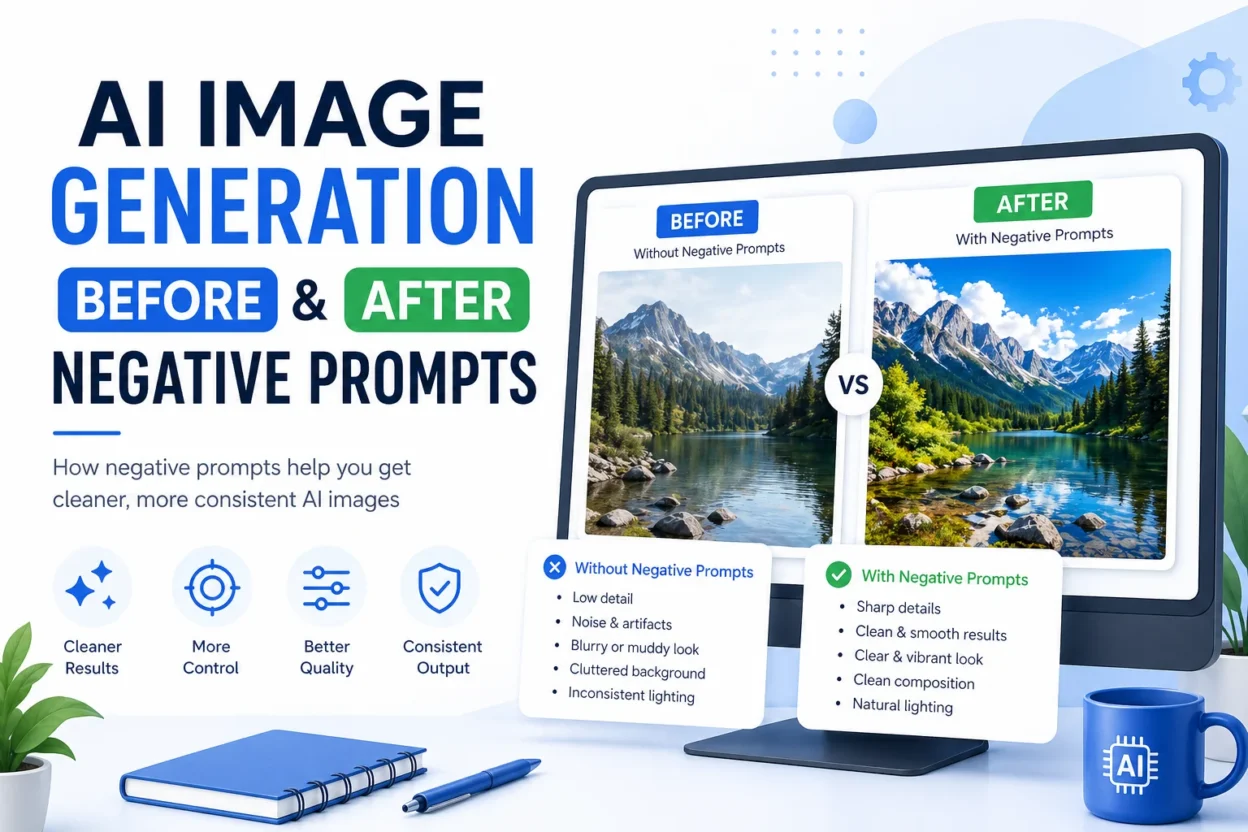
This starter list works across most tools, but the following sections will show you how to add image-specific terms for portraits, landscapes, products, and other specialized needs. The dramatic effect of negative prompts becomes most obvious when you compare images generated with and without this baseline list.
Remember, this copy paste negative prompts list is your foundation, not your final destination. Different image types need different additions, which I’ll cover in the next sections.
Negative Prompt Lists by Image Type (Portraits, Landscapes, Products, and More)
Different image types need different negative prompt additions because each category faces unique AI generation challenges. While the universal list works as a foundation, I’ve found that tailoring your negative prompt for ai image generator tools based on what you’re creating delivers dramatically better results.
Here are the specialized additions I use for each major image category, along with the specific problems these terms solve.
Negative Prompts for Portraits and People
Portrait photography prompts require extra attention to facial features and body proportions. Human subjects are where AI generators struggle most, so these additions target the most common anatomy failures:
Add these to your universal list for portraits:
asymmetry, deformed eyes, crossed eyes, uneven eyes, double chin, distorted face, unnatural expression, extra limbs, distorted hands, exaggerated proportions, missing facial features, weird teeth, crooked smileThe key insight I’ve learned is that portrait negative prompts should always work alongside positive specificity. Don’t just exclude bad anatomy, also specify what you want: “detailed hands” or “symmetrical face” in your positive prompt.
These terms specifically target facial asymmetry and the dreaded extra fingers problem that plague AI-generated people. The “distorted hands” and “exaggerated proportions” terms help maintain realistic human proportions.
Negative Prompts for Realistic Photos
Creating realistic ai images requires removing telltale signs that scream “this was made by AI.” The goal is making your output indistinguishable from a real photograph:
Add these for photorealistic results:
plastic skin, artificial look, oversaturated, painterly, digital art style, cartoon, anime, illustration, smooth skin, airbrushed, overexposed ai image, digital noise, unnatural bokehThese terms push the AI away from the smoothed, plastic-looking skin that often makes AI portraits look fake. The “painterly” and “digital art style” exclusions help maintain photographic realism instead of veering into artistic interpretations.
Negative Prompts for Landscapes and Nature
Landscape images have their own set of common problems, particularly with color grading and atmospheric effects:
Add these for clean landscapes:
foggy, dull colors, overexposed, muddy colors, dead trees, brown grass, pollution, smog, unnatural sky colors, oversaturated sky, blurry foregroundLandscape negative prompts work differently than portrait ones because you’re dealing with environmental elements rather than anatomy. The “foggy” and “dull colors” terms help create crisp, vibrant outdoor scenes unless haze is specifically what you want.
Negative Prompts for Product Photography
Product shots need clean backgrounds and accurate representation without visual distractions:
Add these for product images:
busy background, text in ai images, product labels, logos, price tags, text overlay ai, cluttered scene, multiple products, casting shadows, reflective surfaces, distorted perspectiveHere’s something important: for product photography, a positive prompt specifying “solid white background” often works better than trying to remove backgrounds with negative prompts alone. Combine both approaches for the cleanest results.
These watermark removal prompts specifically target the text and branding that often appears uninvited in product shots.
Negative Prompts for AI Art and Illustration
This category requires a completely different approach. For ai art generation, you want to avoid over-restricting the creative process:
Use these minimal restrictions for artistic styles:
text, watermark, signature, username, jpeg artifacts, low resolutionHere’s the crucial difference: avoid using generic aesthetic terms like “ugly” or “gross proportions” when creating stylized art. These terms can destroy intentional artistic styles. Think about it if you’re creating something inspired by Tim Burton’s aesthetic, those “grossly proportioned” characters are exactly what you want, not what you want to eliminate.
Focus on removing technical artifacts while giving the AI creative freedom for stylistic choices. This approach maintains the artistic integrity while ensuring clean, professional output.
Each of these specialized lists builds on the universal foundation I shared earlier. The key is understanding what specific challenges each image type faces and targeting those problems directly.
The Anatomy Problem: Why AI Hands Are Still Wrong (Even With Negative Prompts)
Negative prompts reduce anatomy problems significantly but do not eliminate them completely because AI models see pixel patterns, not actual concepts like “hands.” After generating thousands of portraits, I need to be honest with you about what works and what doesn’t when it comes to deformed hands ai fix techniques.
The anatomy issue is the number one complaint I hear from AI artists. You use all the right negative prompts, and somehow your character still has six fingers, hands that morph into tree branches, or facial features that look like they went through a blender.
Here’s what’s actually happening: AI generators don’t understand what a hand is supposed to look like. The model processes collections of pixels that often appear together in training images. When the AI generates a hand, it’s piecing together pixel patterns it has seen before, not following any rules about human anatomy.
I tested this with a portrait that had extra fingers. Adding “abnormal hands, extra fingers” to my negative prompt did fix the problem, transforming a flawed portrait into a clean result. But this success isn’t guaranteed every time because the underlying issue remains.
The Anatomy Negative Prompt List (Copy and Paste)
Here’s the most effective anatomy-focused negative prompt collection I use for addressing bad anatomy issues:
extra fingers, mutated hands, poorly drawn hands, poorly drawn face, mutation, deformed, bad anatomy, bad proportions, extra limbs, fused fingers, too many fingers, missing fingers, distorted hands, mutilated, malformed limbs, disconnected limbs, floating limbsThis list targets the most common anatomical failures in AI-generated people. The terms work together to reduce various forms of body proportion problems and hand deformities.
When Anatomy Prompts Make Things Worse (And What to Do Instead)
Here’s something most guides won’t tell you: overloading negative prompts with anatomy terms can cause the AI to forget the primary subject entirely. I’ve seen cases where adding too many anatomy restrictions makes hands disappear from the frame completely rather than improving them.
The smarter approach combines negative anatomy terms with positive specificity. Instead of just excluding “deformed hands,” also include “detailed hands” or “realistic proportions” in your positive prompt. This deformed hands ai fix strategy gives the AI something specific to aim for while avoiding the problems.
When negative prompts still aren’t enough, inpainting becomes your best friend. Generate your image with the anatomy negative prompts first. If hands still look wrong, use the inpainting feature to regenerate just that specific area with the same positive prompt but adjusted settings.
The key insight is this: negative prompts are one tool in a larger toolkit. They work best when combined with positive reinforcement and follow-up techniques rather than relied upon as a complete solution.
Bad anatomy problems require a multi-step approach because the fundamental challenge isn’t just about excluding unwanted elements it’s about guiding the AI toward understanding what human proportions should actually look like.
Quick Fix Negative Prompts: Organized by the Problem You Are Seeing Right Now
The most effective approach to negative prompts is describing the exact problem you see in your image rather than the outcome you want. When I’m troubleshooting a generation that went wrong, I scan for the specific issue and add targeted terms rather than throwing a kitchen sink of random negative prompts at it.
Here’s how I organize my quick fixes. Find the problem that matches what you’re seeing, then add these specific terms to your existing negative prompt list.
Your Image Is Blurry or Looks Low Resolution
For blurry image ai fix issues, add these terms:
blurry, soft focus, out of focus, low resolution, pixelated, grainy, noise, fuzzy, unclear, low detail, compressed, jpeg compressionHere’s something counterintuitive I learned: adding negative keywords like “blurry” and “abstract” is more effective at forcing high-resolution, detailed images than adding “4K” or “high resolution” to your positive prompt. The AI responds better to avoiding low quality ai output than chasing quality labels.
These terms target the most common clarity issues that make AI images look unprofessional or unusable.
There Are Watermarks, Text, or Logos on Your Image
For watermark removal prompts and text in ai images, use:
watermark, text, logo, signature, username, copyright, brand name, writing, letters, words, text overlay, caption, titleRandom text and watermarks appear because AI training data included millions of images with these elements. The AI learned that text overlay ai and logos often accompany images, so it sometimes includes them uninvited.
These watermark removal prompts specifically target the various forms of unwanted text that can ruin an otherwise perfect generation.
The Lighting Looks Overexposed, Too Dark, or Artificial
For lighting problems and overexposed ai image issues:
overexposed, underexposed, harsh lighting, artificial lighting, poor lighting, dark shadows, blown out highlights, flat lighting, uneven lighting, bad exposureImportant warning: if you want dramatic lighting in your image, don’t exclude “shadows” entirely. Instead, use more specific terms like “heavy shadows” or “overly dark” to avoid removing the lighting effects you actually want.
Lighting negative prompts help create more natural, professionally lit images without destroying intentional mood lighting.
Your Subject Got Cut Off or the Composition Looks Wrong
For composition issues and cropped image fix problems:
out of frame, cropped, cut off, partial view, incomplete, edge of frame, truncated, bad framing, poor composition, off center when symmetry wantedThese composition terms work differently in portrait versus landscape formats. The “out of frame” exclusion helps keep your main subject fully visible rather than accidentally cutting off heads, hands, or other important elements.
Image distortion in framing often happens when the AI tries to fit too much into the frame or when aspect ratios don’t match your intended composition.
The Colors Look Oversaturated or Unnatural
For color problems and ai image artifacts:
oversaturated, undersaturated, neon colors, artificial colors, color cast, wrong white balance, muddy colors, dull colors, color bleeding, unnatural skin tonesCritical warning about color negative prompts: removing a specific color from your negative prompt affects all elements in the image that contain that color, not just one element. I learned this the hard way when excluding “blue” led to unexpected distortions in both the background and facial details.
These color terms help achieve natural, balanced color grading without the artificial look that often screams “AI generated.”
The key to using these quick fixes effectively is being specific about what you actually see going wrong rather than adding every possible negative term. Target the real problem, and your results improve dramatically.
Negative Prompts for Stable Diffusion, Midjourney, Leonardo AI, and More
Each AI art tool handles negative prompts differently, with unique syntax, interfaces, and capabilities that can make or break your results. After testing negative prompts for stable diffusion and midjourney alongside other major platforms, I’ve learned that knowing your specific tool’s requirements is just as important as knowing which terms to use.
Here’s the breakdown of how each major platform actually works, including the one popular tool that doesn’t support negative prompts at all.
Negative Prompts in Stable Diffusion (Text Box Method)
Stable diffusion negative prompts use a dedicated text box located directly below your main prompt field. Most Stable Diffusion interfaces label this clearly as “Negative Prompt” or “Negative.”
Simply enter your terms separated by commas, and aim for 5 to 15 terms for best results. Stable Diffusion processes these exclusions during every step of the diffusion model generation process.
Here’s something technical worth knowing: Stable Diffusion 2.0’s deduped and flattened latent space makes negative weighting more impactful than in version 1.0. This means negative prompts work more effectively in newer versions of the platform.
For advanced users, negative embeddings like EasyNegative and BadHandV4 offer supercharged alternatives to typed keyword lists. These downloadable files target specific problems like anatomy issues more effectively than regular text prompts.
Negative Prompts in Midjourney (The –no Parameter)
Midjourney negative prompts use the –no parameter added directly to your main prompt. The syntax is straightforward: type your positive prompt, then add –no followed by the elements you want to exclude.
Example: /imagine a forest landscape --no trees, people, buildings
The –no parameter carries a default weight of -0.5, but you can strengthen negative prompts using multi-prompt syntax like unwanted_element::-1. Remember that all prompt weights must total zero or positive.
Here’s a powerful Midjourney technique: if the AI keeps ignoring your negative prompt, use double-reinforcement. Combine a positive descriptor with the –no parameter simultaneously. For example: “cloudless sky –no clouds” gives the AI both a positive target and a negative exclusion.
Remix Mode in Midjourney allows adding negative prompts to existing images without starting from scratch. This feature is perfect when you have an image you like but want to remove specific elements.
Negative Prompts in Leonardo AI (Advanced Settings Toggle)
Leonardo AI requires enabling negative prompts through the Advanced Settings panel before you can use them. Navigate to Advanced Settings, then toggle the “Negative Prompt” feature on to reveal the text field.
Critical compatibility note: negative prompts in Leonardo AI work most reliably with the Ideogram 3 model. Other models may not support the feature consistently, leading to frustrating results where your negative prompts seem to be ignored.
Enter your exclusion terms separated by commas, but keep the list concise. Long, overly complex negative lists in Leonardo AI can make the final image look unnatural or too constrained.
Always avoid contradictions between your positive and negative prompts in Leonardo AI. If your main prompt requests “dramatic lighting,” don’t exclude “shadows” in your negative prompt.
Does Bing Image Creator Support Negative Prompts? (Important Warning)
DALL-E 3 via Bing Image Creator does not have a native negative prompt field, and negative language in the main prompt often backfires. This is the most frustrating discovery many users make when switching between AI art tools.
Here’s exactly what happens: when you write “without weapons” in a Bing Image Creator prompt, the AI often interprets this as emphasis on weapons rather than exclusion. Users report that saying “without guns” actually makes guns appear more prominently in the image.
The workaround involves reframing constraints as positive instructions. Instead of “no blue colors,” write “warm red and yellow color palette.” For complex exclusions, use ChatGPT to help convert your negative constraints into positive descriptive language.
This limitation affects millions of users since Bing Image Creator is one of the most accessible generative AI tools available. Understanding this difference can save hours of frustration when your usual negative prompt techniques simply don’t work.
The key takeaway is checking your specific AI art tools documentation before assuming negative prompts work the same way across platforms. Each tool evolved independently, creating these syntax and capability differences that directly impact your results.
Mistakes That Make Your Negative Prompts Work Against You
The most common negative prompt mistakes actually make your images worse by overwhelming the AI, creating contradictions, or restricting artistic styles that should be preserved. After watching countless users struggle with negative prompts, I’ve identified the specific errors that turn this helpful tool into a hindrance.
These mistakes come from real tested experiences, not theoretical problems. Understanding what goes wrong helps with better prompt engineering and overall image quality improvement in your ai image generation workflow.
Using Too Many Negative Prompts at Once
Adding more than 15 negative terms at once can cause the AI to forget your primary subject entirely. I learned this the hard way when a massive negative prompt list made my portrait subject disappear from the frame completely instead of improving the image quality.
When you paste a 50-term negative prompt list, you’re essentially telling the AI to avoid half the visual universe. The model becomes so focused on exclusions that it loses track of what you actually want to create.
The result is often sterile, lifeless images that technically avoid all the problems you listed but lack the energy and character that make AI art interesting. Keep your negative prompt focused on the actual problems you see, not every possible problem that might exist.
The sweet spot I’ve found is 5 to 15 carefully chosen terms that target specific issues rather than trying to solve every potential problem upfront.
Writing Negative Prompts That Contradict Your Main Prompt
Contradictory instructions between your positive and negative prompts confuse the AI and produce unpredictable results. The classic example is requesting “dramatic lighting” in your main prompt while adding “shadows” to your negative prompt.
I’ve seen this happen with landscape prompts too. Someone wants a “misty mountain scene” but adds “fog” to their negative prompts, then wonders why the AI produces a confusing, inconsistent image.
Midjourney specifically ignores negative prompts that contradict the core subject. If you prompt for “a desert landscape” and then add “–no sand,” Midjourney will simply ignore the negative instruction because sand is fundamental to what makes a desert recognizable.
Always review both your positive and negative prompts together before generating. Ask yourself: are these instructions working together or fighting against each other?
Using Style-Restricting Terms for Artistic or Stylized Images
Generic aesthetic terms like “ugly” and “gross proportions” can destroy intentional artistic styles where those qualities are actually desired features. This is the mistake that reveals whether someone truly understands ai art generation versus just copying lists they found online.
Consider creating art inspired by Tim Burton’s aesthetic. The characters in his work are intentionally “grossly proportioned” with exaggerated features and unconventional beauty. If you include “ugly” or “gross proportions” in your negative prompts, you’re actively fighting against the artistic style you’re trying to achieve.
The same applies to expressionist art, caricature work, or any stylized approach where conventional proportions and traditional beauty standards don’t apply.
For artistic and stylized images, focus your negative prompts on technical artifacts like watermarks, text, and low resolution issues. Avoid restricting aesthetic choices that might be essential to your intended style.
This mistake happens because people treat negative prompts like a universal solution instead of a targeted tool. The most effective approach tailors your exclusions to support your specific creative vision rather than applying blanket restrictions that might work against it.
How to Use Negative Prompts in Your AI Image Generator Step by Step
The most effective way to use negative prompts is through an iterative approach where you generate first, identify specific problems, then add targeted terms rather than starting with a massive exclusion list. This workflow approach has transformed how I handle prompt engineering and ai image generation across different platforms.
Most people treat negative prompts for ai image generator tools like a preset they copy and paste. The better approach treats negative prompts as a refinement tool that responds to what you actually see going wrong in your specific generation.
Here’s the step-by-step workflow I use for consistently better results.
Step 1: Generate First, Prompt Second
Start with your positive prompt alone and generate at least one test image to see what problems actually appear. This baseline generation shows you the AI’s natural tendencies with your specific prompt and subject matter.
I used to load up negative prompts before even seeing what the AI would produce naturally. This approach often solved problems that weren’t going to happen while missing the issues that actually appeared.
Generate your first image with just your positive prompt and strong descriptive language. Look at what comes back objectively. Are there extra fingers? Watermarks? Blurry areas? Bad lighting? Only add negative terms for problems you can actually see.
This iterative approach prevents you from fighting imaginary problems while addressing real issues effectively.
Step 2: Start With General Quality Blockers
Always begin with universal quality terms that improve baseline image quality without conflicting with specific styles. These foundational terms work across virtually all ai image prompts and image types.
Use the universal list from Section 2 as your starting foundation: lowres, text, watermark, blurry, low quality, jpeg artifacts. These quality blockers rarely cause conflicts and provide consistent image quality improvement across different subjects and styles.
These general terms handle the most common technical problems that appear in AI generations regardless of your specific subject matter. Start broad with these foundational exclusions, then refine based on what you observe in the results.
This approach gives you clean, professional baseline quality before you start targeting specific issues.
Step 3: Add Specific Terms for Your Specific Problems
Use the problem-organized lists to add targeted terms only when a specific issue keeps appearing in your generations. This is where the “describe the problem you see, not the outcome you want” principle becomes crucial.
If you see harsh shadows ruining your portrait, add “harsh shadows” rather than “soft lighting.” If backgrounds are cluttered, add “cluttered background” rather than “clean background.” This specific targeting approach works much better than generic positive requests.
Reference Section 5’s problem-organized lists to find the exact terms that address what you’re seeing. Each category targets specific visual issues rather than vague quality concepts.
Here’s a bonus resource that most people never discover: Lexica.art lets you browse thousands of real AI images and see the exact prompts that created them, including negative prompts. This free tool becomes your learning library for understanding what prompt combinations actually work in practice.
The key to mastering this workflow is patience. Build your negative prompts incrementally based on real observations rather than trying to solve every possible problem upfront. This targeted approach consistently delivers better results than copy-pasting massive preset lists.
Advanced Techniques for When the Basics Are Not Enough
Advanced negative prompt techniques include weighting systems, positive prompt alternatives, and specialized tools like negative embeddings that give you precise control over stubborn generation problems. These methods go beyond basic keyword lists to manipulate how the AI processes your instructions at a deeper level.
I use these techniques when standard negative prompts aren’t getting the job done or when I need very specific control over particular elements. Most users never discover these approaches, but they’re incredibly powerful for consistent professional results.
Negative Prompt Weights: How to Make the AI Listen Harder
Prompt weighting allows you to increase the strength of specific negative terms when the AI keeps ignoring your standard exclusions. Different platforms handle this weighting differently, but the concept is the same across tools.
In Midjourney, the default –no parameter carries a weight of -0.5. You can strengthen specific exclusions using multi-prompt syntax like unwanted_element::-1. Remember that the total of all weights in your prompt must equal zero or positive for the system to work properly.
Stable Diffusion uses bracket syntax for emphasis. Instead of just “deformed,” you can write “(deformed:1.3)” to increase the negative conditioning strength. Higher numbers mean stronger exclusion, but going too high can create artificial-looking results.
Some platforms like NightCafe use slider systems where you can adjust the negative prompt weight manually. Setting the slider to -1 often produces dramatically better results than the default settings, but experiment to find what works for your specific image type.
When Positive Prompts Beat Negative Ones
Sometimes using positive reinforcement like “detailed hands” works better than negative suppression like “deformed hands” for achieving the results you want. This counterintuitive approach can solve problems that negative prompts can’t touch.
The logic is simple: instead of telling the AI what to avoid, you give the AI something specific to aim for. “Symmetrical face” often works better than “asymmetrical face” in negative prompts because it provides a clear target rather than just an exclusion.
This positive approach also avoids the side effect where anatomy negative prompts cause hands to disappear from the frame entirely rather than improving them. When you specify “realistic proportions” or “detailed fingers” in your positive prompt, you guide the AI toward quality rather than just away from problems.
Use this technique when standard negative prompts aren’t working or when they’re creating new problems. The positive reinforcement approach works especially well for anatomy, lighting, and composition issues.
Negative Embeddings for Stable Diffusion Users
Negative embeddings are downloadable files that act as supercharged negative prompts, targeting specific problems more effectively than typed keyword lists. These specialized tools are available primarily for Stable Diffusion and work like preset negative prompt packages.
Popular negative embeddings include EasyNegative for general quality improvements, BadHandV4 for anatomy issues, and FastNegativeV2 for comprehensive artifact removal. You download these files and reference them in your negative prompt field by name instead of typing long keyword lists.
These embeddings were trained specifically to recognize and eliminate common AI generation problems. They often work better than manual negative prompt lists because they understand visual patterns at a deeper level than individual keyword exclusions.
You can find stable diffusion negative prompts embeddings on platforms like Civitai or Hugging Face. Install them in your models folder and reference them by filename in your Stable Diffusion interface negative prompt field.
These advanced techniques require more setup and understanding than basic negative prompts, but they provide the precision control needed for professional-quality AI art generation when standard methods fall short.
Your Negative Prompt Cheat Sheet: Everything in One Place
This consolidated reference combines the universal negative prompt list with specialized additions for different image types, giving you copy paste negative prompts for any situation. I’ve organized everything into one scannable resource that you can bookmark and return to every time you generate images.
Universal Foundation (Use for All Images):
lowres, text, error, cropped, worst quality, low quality, jpeg artifacts, ugly, duplicate, morbid, mutilated, out of frame, extra fingers, mutated hands, poorly drawn hands, poorly drawn face, mutation, deformed, blurry, dehydrated, bad anatomy, bad proportions, extra limbs, cloned face, disfigured, gross proportions, malformed limbs, missing arms, missing legs, extra arms, extra legs, fused fingers, too many fingers, long neck, username, watermark, signatureAdd for Portraits: asymmetry, deformed eyes, crossed eyes, uneven eyes, double chin, distorted face, unnatural expression
Add for Realistic Photos: plastic skin, artificial look, oversaturated, painterly, digital art style, cartoon, anime, illustration
Add for Landscapes: foggy, dull colors, overexposed, muddy colors, dead trees, brown grass, pollution, smog
Add for Products: busy background, product labels, logos, price tags, cluttered scene, multiple products, casting shadows
Quick Fixes by Problem:
- Blurry images: Add “soft focus, out of focus, pixelated, grainy, noise, fuzzy, unclear”
- Unwanted text: Add “text overlay, caption, title, writing, letters, words”
- Bad lighting: Add “overexposed, underexposed, harsh lighting, artificial lighting, poor lighting”
- Wrong colors: Add “oversaturated, undersaturated, neon colors, artificial colors, color cast”
Remember that experienced AI artists develop their own negative prompt list templates tailored to their specific image types and styles. This comprehensive list gives you the foundation, but you’ll naturally adapt and personalize these terms based on your own results and preferences.
There is no secret sauce here. Success with negative prompts for ai image generator tools depends on the specific image you’re creating and often requires trial and error. Use this negative prompt list as your starting point, then refine based on what you see in your actual generations.
The goal of effective ai image generation is finding the right balance between exclusions and creative freedom, allowing the AI to surprise you while avoiding the problems that ruin otherwise great images.
Add for Portraits: asymmetry, deformed eyes, crossed eyes, uneven eyes, double chin, distorted face, unnatural expression
Add for Realistic Photos: plastic skin, artificial look, oversaturated, painterly, digital art style, cartoon, anime, illustration
Add for Landscapes: foggy, dull colors, overexposed, muddy colors, dead trees, brown grass, pollution, smog
Add for Products: busy background, product labels, logos, price tags, cluttered scene, multiple products, casting shadows
Quick Fixes by Problem:
- Blurry images: Add “soft focus, out of focus, pixelated, grainy, noise, fuzzy, unclear”
- Unwanted text: Add “text overlay, caption, title, writing, letters, words”
- Bad lighting: Add “overexposed, underexposed, harsh lighting, artificial lighting, poor lighting”
- Wrong colors: Add “oversaturated, undersaturated, neon colors, artificial colors, color cast”
Remember that experienced AI artists develop their own negative prompt list templates tailored to their specific image types and styles. This comprehensive list gives you the foundation, but you’ll naturally adapt and personalize these terms based on your own results and preferences.
There is no secret sauce here. Success with negative prompts for ai image generator tools depends on the specific image you’re creating and often requires trial and error. Use this negative prompt list as your starting point, then refine based on what you see in your actual generations.
The goal of effective ai image generation is finding the right balance between exclusions and creative freedom, allowing the AI to surprise you while avoiding the problems that ruin otherwise great images.
Frequently Asked Questions About Negative Prompts
Should I write “no blue” or just “blue” in my negative prompt?
Write just “blue” in most AI image generators with dedicated negative prompt fields. The negative prompt box itself tells the AI to exclude whatever you type, so adding “no” is redundant and can confuse the model.
I learned this through trial and error across different platforms. In Stable Diffusion, Leonardo AI, and similar tools, typing “blue” in the negative prompt field works perfectly. However, in Ideogram where there’s no separate negative box, you need to write “no blue” directly in the main prompt.
The key is understanding your specific tool’s interface. Tools with separate negative prompt fields handle exclusions automatically, while tools without them require explicit negative language
How many negative prompts should I use at once?
Use 5 to 15 negative prompt terms for optimal results. Fewer than 5 terms often misses common problems like blurry images or watermarks. More than 15 terms risks overwhelming your positive prompt, causing the AI to lose focus on your main subject.
I’ve tested this extensively and found that massive negative prompt lists produce constrained, unnatural results. The AI becomes so focused on avoiding things that it forgets what you actually want to create.
Start with a universal quality list covering basics like “blurry, low quality, watermark, text.” Then add specific terms only for problems you actually see in your generations.
Why are my negative prompts not working in Bing Image Creator?
Bing Image Creator (DALL-E 3) does not support native negative prompts. When you write negative language like “without weapons” in the main prompt, the AI often interprets this as emphasis rather than exclusion, making the unwanted element appear more prominently.
This limitation affects millions of users since Bing Image Creator is widely accessible. I’ve found two workarounds that actually work: reframe constraints as positive descriptions (“peaceful garden scene”) or use ChatGPT to convert your negative intent into positive prompt language.
This is one of the most frustrating discoveries for users switching between AI tools, but understanding this difference saves hours of confusion
Do negative prompts actually fix bad hands and extra fingers?
Negative prompts reduce anatomy problems significantly but don’t eliminate them completely. The AI model doesn’t understand the concept of hands it works with pixel patterns that often appear together in training images.
I’ve seen negative anatomy prompts help with extra fingers, but sometimes they cause hands to disappear from the frame entirely rather than improving them.
The most effective approach combines negative anatomy terms with positive specificity like “two hands, detailed fingers” in your main prompt.
For stubborn anatomy issues, inpainting becomes your best tool after negative prompts have done their initial work
Can I use the same negative prompt list for every image I generate?
Use a core universal list for all images, but customize anatomy and style terms for each image type. Quality blockers like “blurry, watermark, low resolution” work across all generations. Style-specific terms need adjustment based on your intended output.
I learned this lesson when creating stylized art inspired by Tim Burton’s aesthetic. Using “ugly” or “gross proportions” as universal negatives destroyed the intentionally exaggerated character features that make that style recognizable.
Experienced AI artists build template lists for portraits, landscapes, products, and artistic styles rather than relying on one blanket approach.
What is the difference between positive and negative prompts?
Positive prompts describe what you want the AI to generate, while negative prompts describe what you want excluded. Both instructions are processed simultaneously during image generation the model moves toward positive elements and away from negative ones at the same time.
Think of positive prompts as your destination and negative prompts as roadblocks you want to avoid on the way there. The AI balances both sets of instructions to create the final image.
This simultaneous processing is why contradictory instructions between positive and negative prompts cause confusing results.
Are negative prompts available in all AI image generators?
No, negative prompt support varies significantly between AI tools. Stable Diffusion, Midjourney, Leonardo AI, and Artflow AI support them but use different interfaces and syntax. DALL-E 3 via Bing Image Creator lacks native negative prompt fields entirely.
Each platform evolved independently, creating these compatibility differences.
Midjourney uses the “–no” parameter, Stable Diffusion uses a dedicated text box, and Ideogram requires natural language in the main prompt.
Always check your specific tool’s documentation or settings panel before assuming negative prompts work the same way across platforms. Understanding these differences prevents frustration and wasted time